Thursday 30th of July
From Theoda Metcalf and Aaron Danker
Your Online Marketing Teachers
Whether you realize it or not, graphics will play an important role in your online success. There are a plethora of platforms that fully support the use of images for marketing purposes like Facebook, Pinterest, Instagram, Twitter and so on...
Then there are your own websites to think about... like your landing page, your sales page, your special offer page, your thank you page, and various other pages in a sales funnel...
Then there are advertising and branding areas to think about like your banner ads, book covers, product box covers, headers and so on...
Then there are the subtle details like your video thumbnails, motivational posters, infographics, memes and so on that can potentially go viral...
The fact is if you're not using graphics to it's fullest potential then you're leaving money on the table. But before we get into that, let's talk about graphics are be nature so effectve...
Here's 5 Reasons Why Graphics Are So Effective in Making Sales!
Reason #1 - We Are Visual Creatures – Humans eyes love to see color, movement, and visual material more than they love to see text. Our eyes are drawn to beautiful imagery, and infographics make it easy to provide that eye candy your audience is looking for.
Reason #2 - We Process Images Faster Than Text – Think about road signs. If you’re driving down a road and see a sign that indicates falling rocks or slippery when wet, you know exactly what it means in an instant. But, if you have to read the words, these take as long to process as one image.
Reason #3 - Graphics Help Break Up the Lots of Information – Our senses are constantly being bombarded with information and it’s hard for our brains to take a moment and digest everything that is thrown at us. An infographic for example allows your brain to take a break and digest the meaning of something before moving on.
Reason #4 - Readers Skip too Much – The truth is, when someone reads your blog posts, they’re likely skipping a lot. People tend to skim vertically on the internet and they miss out on a lot of information that way. If you have something important to convey, providing it in an easy to skim format helps.
Reason #5 - It Makes Instructions Easier to Understand – Have you ever tried to follow a tutorial without images? What about a recipe without images? It can be hard. That’s why cookbooks often come with lots of pictures and images. It helps us follow directions better. An infographic will help your audience comprehend what you’re telling them better because even better than pictures is text with pictures.
With all that in mind, it makes perfect sense to use graphics in your business. But here's the problem....
If you've ever tried to create your own graphics from scratch you'll know how time-consuming and how skillful you have to be...
And if you've ever hire a professional to create graphics for you, you'll know how expensive is it... especially if you have multiple projects and several graphic tid-bits that need doing.
So where does that leave you?... Well luckily for you we have a solution.
We'll Show You Step-by-Step How to Create Professional Looking Graphics Like a Pro!
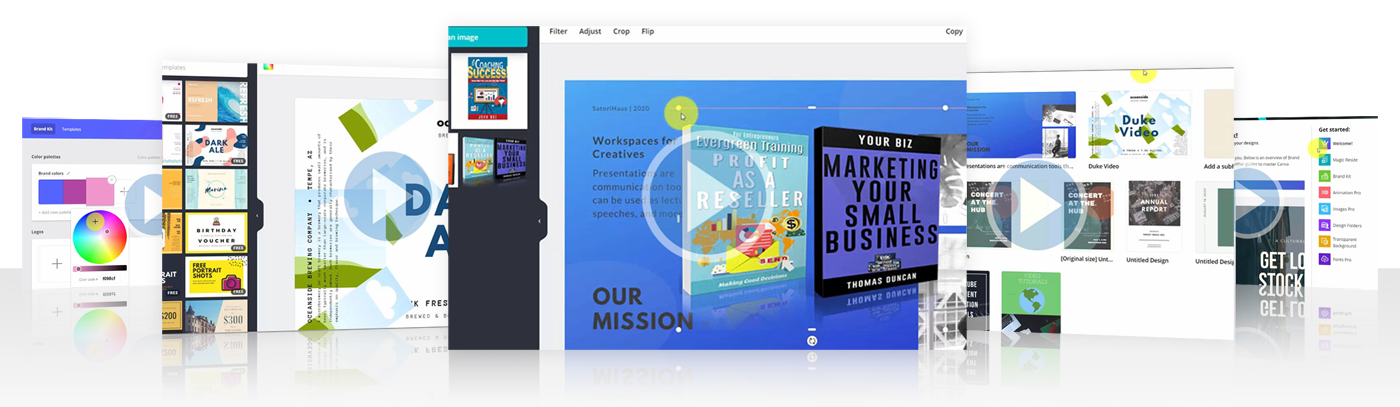
Forget spending a fortune with overly complicated high-end graphics and image editing software. Now you can make professional-quality high-end images even if you have zero experience in graphic design.
Canva is an amazing online tool that allows you to create amazing graphics, images, banners, animated graphics, flyers, and even high-quality presentations, even if you have NEVER designed anything before... and within a matter of minutes!
Here are just some of the many things you can do once you go through this course...
 Create new cover graphics for eBooks, reports, CDs, DVD cases, software boxes etc.
Create eye-catchy animated and static banners for traffic, affiliate tools, or to sell as a graphics package
Create professional mini-site templates and blog headers for almost any niche
Create info-graphics for almost any niche and then promote them on sites like Facebook, Pinterest and more
Create attention-grabbing sales videos, even pre-sell videos to boost sales conversions
Create attractive video thumbnails, that get high click-thrus and send you more traffic
Liven up your text-based sales letters to make it exciting to read and increase it's conversion rate
Use the images on your blog posts to help portray what your post is about effectively
...plus so much more!
This course is perfect for digital marketers, entrepreneurs, startup owners, bloggers, social media managers, and even professional graphic designers who want to use effective shortcuts!
By the time you complete the course, you will be amazed at how easy it is to create a wide range of graphics for every area of your online business. You won’t need any high-end graphics tools EVER AGAIN.
Lesson 1 - Canva Overview
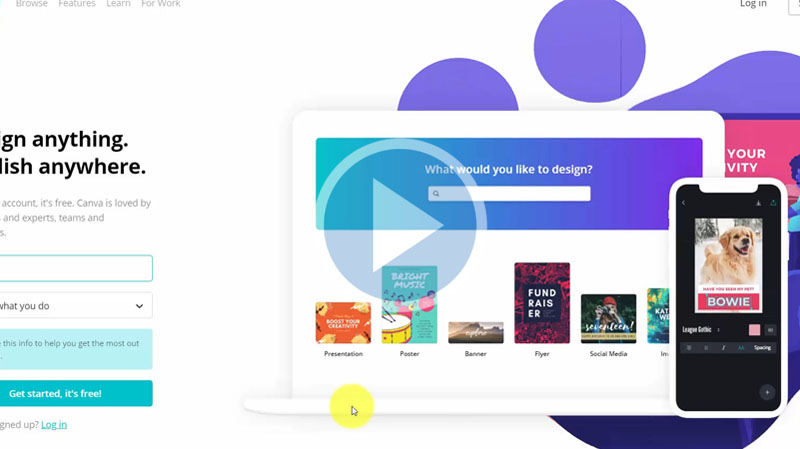
This is an introductory video to Canva, a graphic tool that allows non- designers to create professional graphics using templates. It is also a feature forphoto editing and graphic editing.
Lesson 2 - Optional Canva Plans
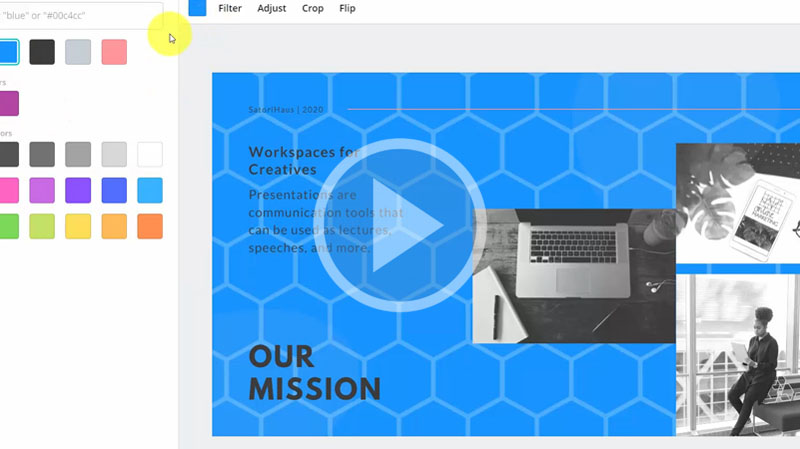
Canva has a free upgrade for 30 days for Canva For Work level. This video will give you an overview of some of the features you can enjoy while using an upgraded version of Canva including saving templates for teams and uploading custom fonts and brands.
Lesson 3 - Canva For Mobile Application
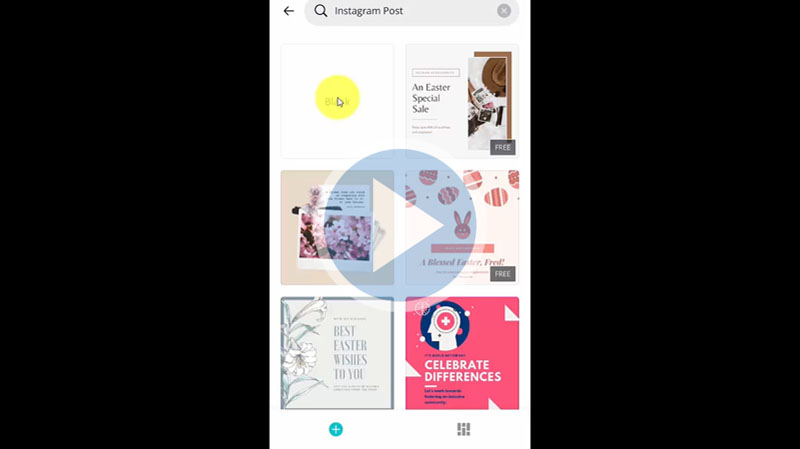
You can access Canva through your mobile device by downloading the app from your play store. In this video, we'll take you through the first step to create a customized design using Canva.
Lesson 4 - Configuring Settings
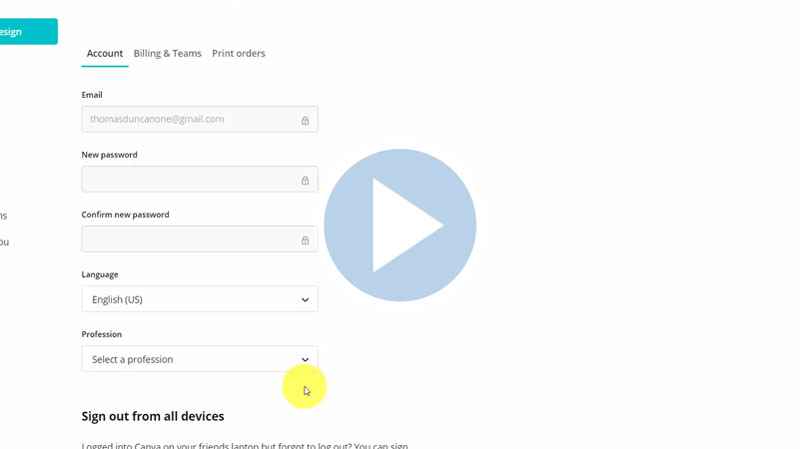
In this video, we'll show you how to configure some settings on your Canva account. You will learn how to add your profile image, location, website, billing account, etc.
Lesson 5 - Brand Kit Upgrade
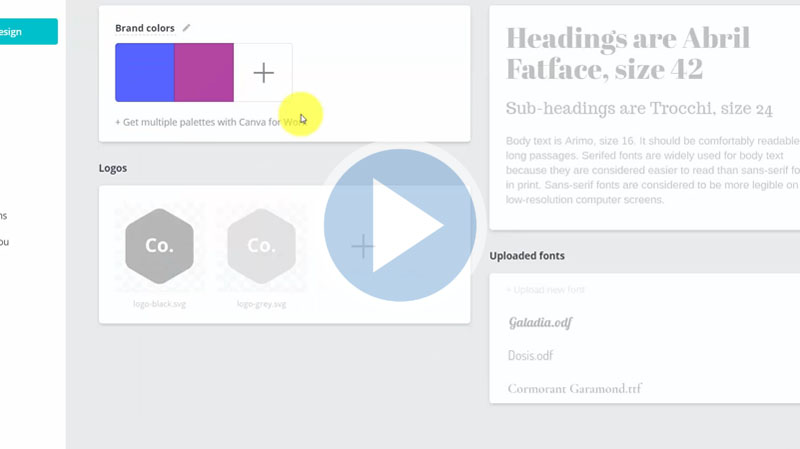
The Brand kit gives access to colour palettes. In this video, you will learn how to indicate your preferred brand colour and set your brand fonts.
Lesson 6 - Inviting Team Members
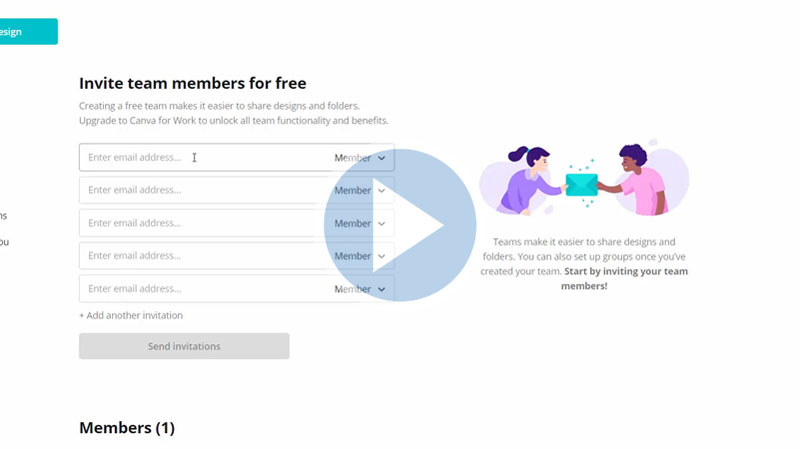
You can collaborate with team members on designs inside Canva. In this video, we'll show you how to add team members and determine their roles as administrators or members.
Lesson 7 - Template Designs
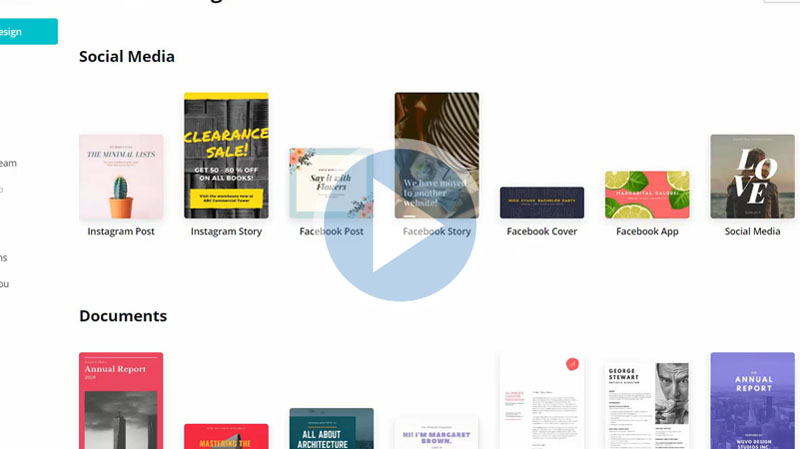
The most important aspect of Canva is the template system which you don’t have to design from scratch. In this video, you will see different template forms like social media, marketing, events, etc.
Lesson 8 - Designing from Scratch
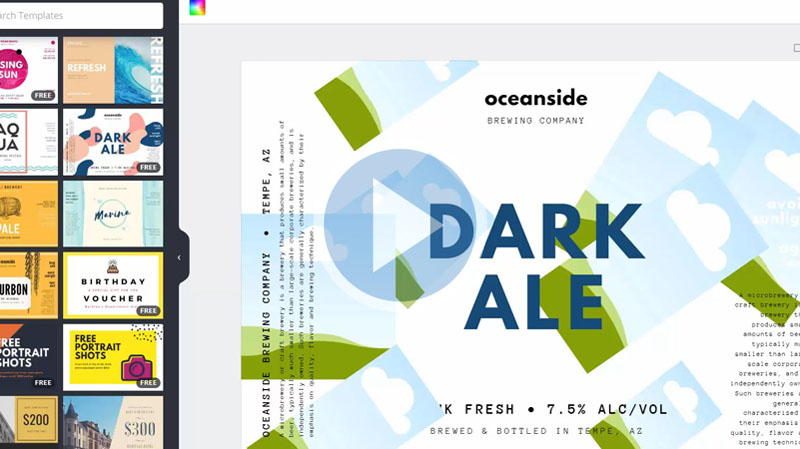
You don’t always need to use the Canva templates. In this video, you will learn how to create a Canva design from scratch.
Lesson 9 - Sharing Content
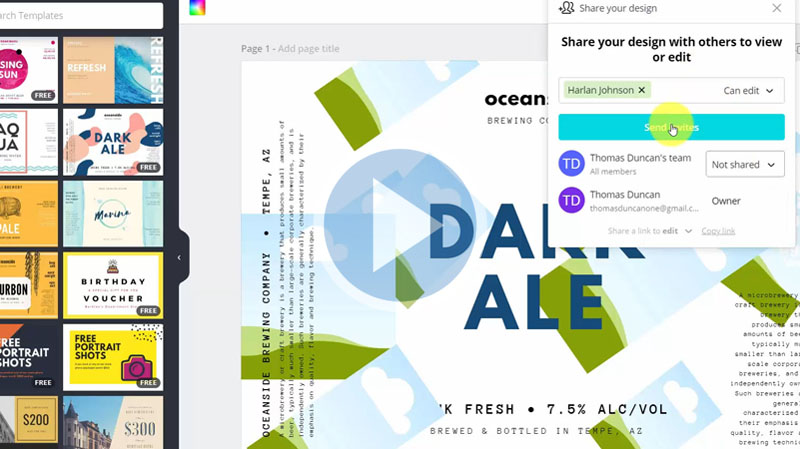
Once you have started working on a design, you can share that design with members of your team to for viewing or for editing. In this video, you will learn how to share your design with other members of your team.
Lesson 10 - Editing Design Elements
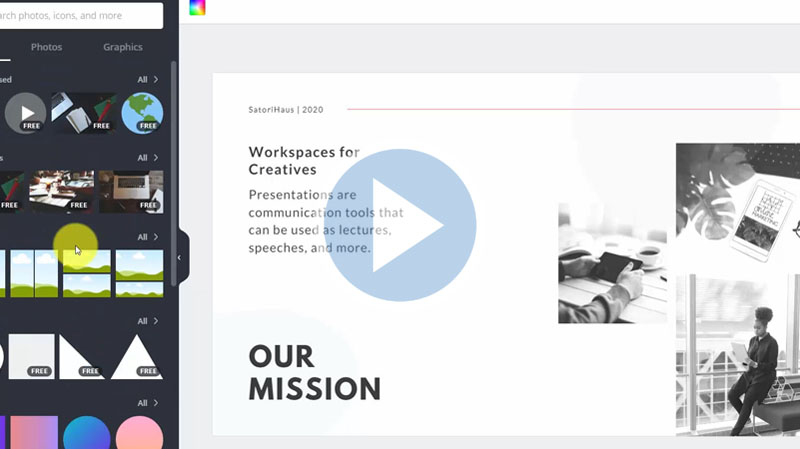
In this video, we'll show youthe process of looking at some of the editing elements. We will look at some of the design creation templates like presentations, thumbnails, etc.
Lesson 11 - Element Menu and Text Elements
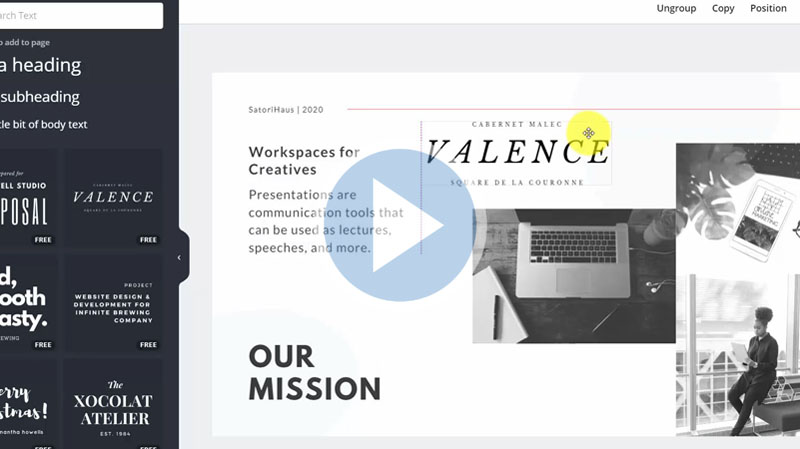
Whenever you highlight an element on your design template, a menu pertaining to that element appears. In this video, we'll show you how to edit elements on your Canva templatee.g.,filter, adjust, crop, flip etc.
Lesson 12 - Create Brand with Background
In this video, you will learn how to change the background colour or element of your designtemplate on Canva.
Lesson 13 - Uploading Your Content
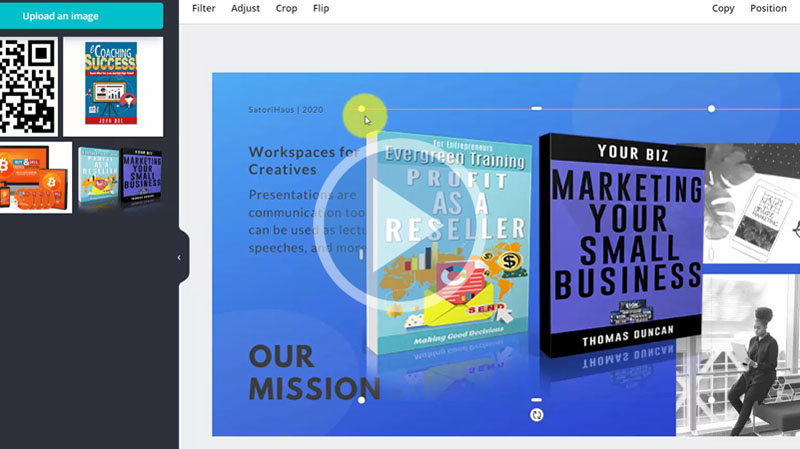
You can upload your own content to Canva. In this video, you will learn how to customize your content with available images or your uploaded image.
Lesson 14 - Editing Other Design Content
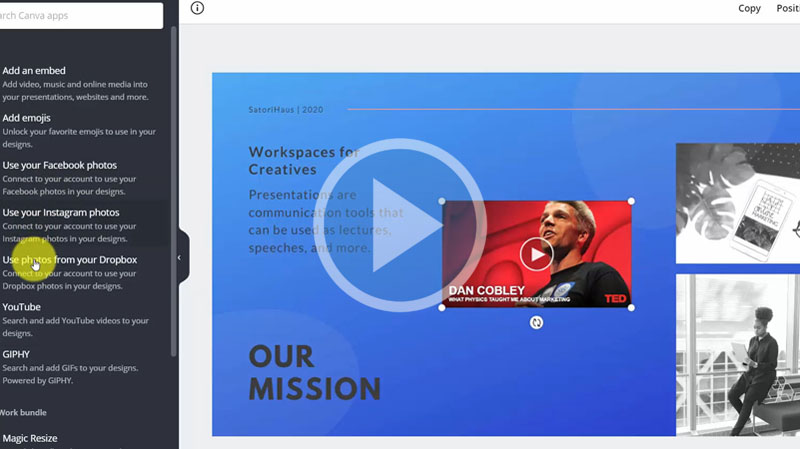
With Canva, you can access other forms of content. In this video, we'll show you how to add elements from Facebook, Instagram, You Tube, TED talk, etc.
Lesson 15 - Content Output Download
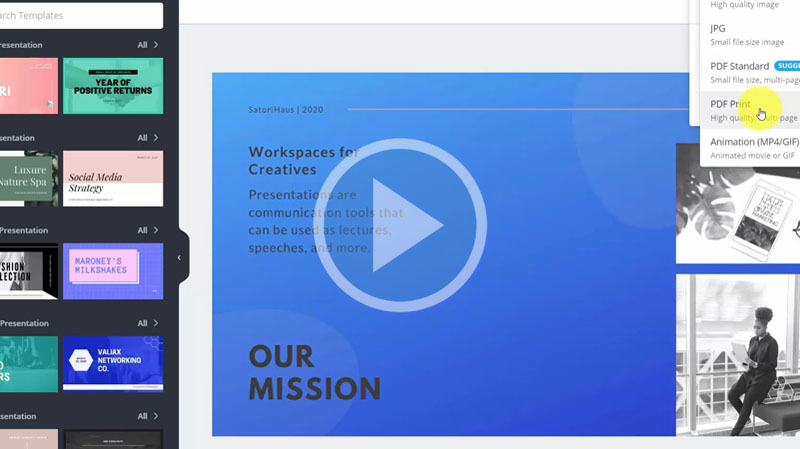
In this video, we'll show you how to download your finalized image. You will learn how to download your images in PDF, PNG, JPEG, or translate it into animation with Canva for work.
Lesson 16 - Output Presentation Content
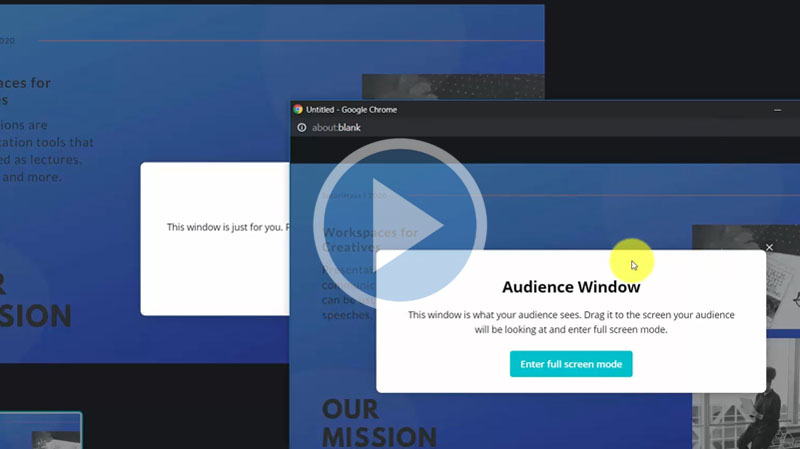
In this video, you will learn how to output your created Canva content into a presentation. You can either download your content into a standard presentation or a presenter view.
Lesson 17 - Output Direct to Social media
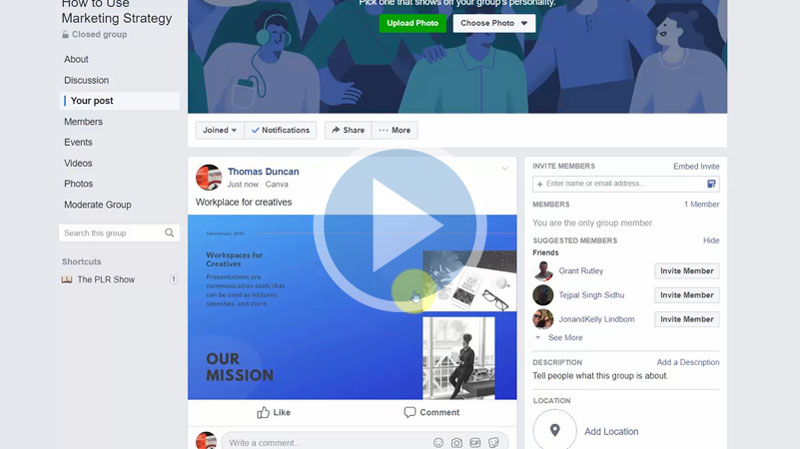
In this video, we'll show you how to output your created Canva content to social media. You will learn how to share your content directly to Facebook, Pinterest, Twitter, etc.
Lesson 18 - Output Direct to PowerPoint
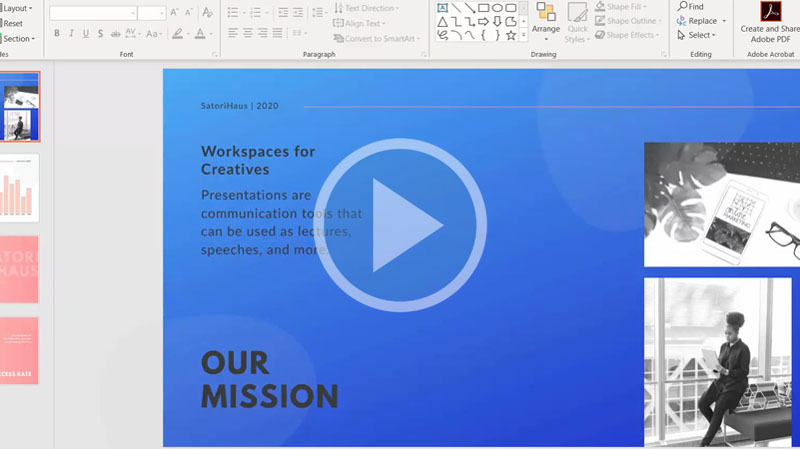
One of the interesting output options is to output to a PowerPoint presentation. In this video, you will learn how to output your created Canva content into a PowerPoint presentation by using multipage documents.
Lesson 19 - Output to Website
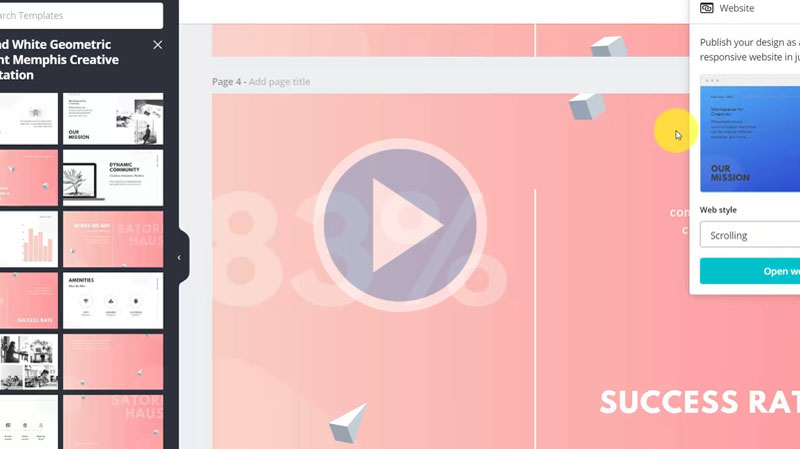
Canva allows you to output your content into a website. In this video, you will learn how to publish your content into a website.
Lesson 20 - Basic Summary
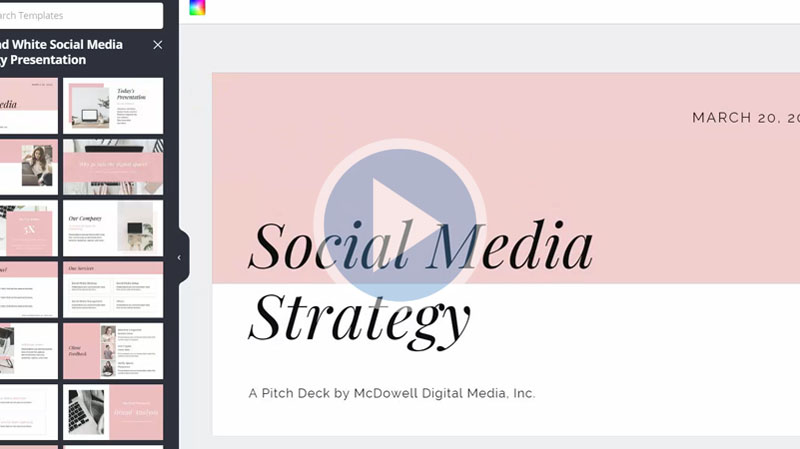
This video gives a summary of the basics of creating a design in Canva and outputting into some popular forms.
Lesson 21 - Advance Overview
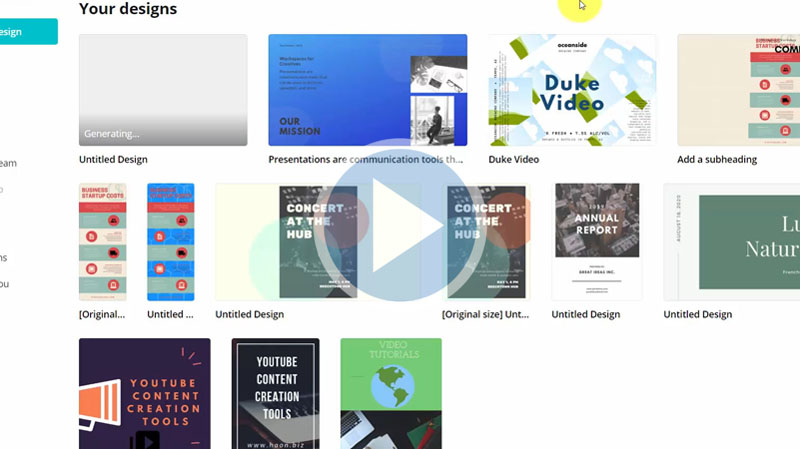
In this video, we will take you through an overview of different output levels that you can use with your design creations in Canva, e.g., printing posters and using elements like business cards, flyers, etc.
Lesson 22 - Output to Business Cards
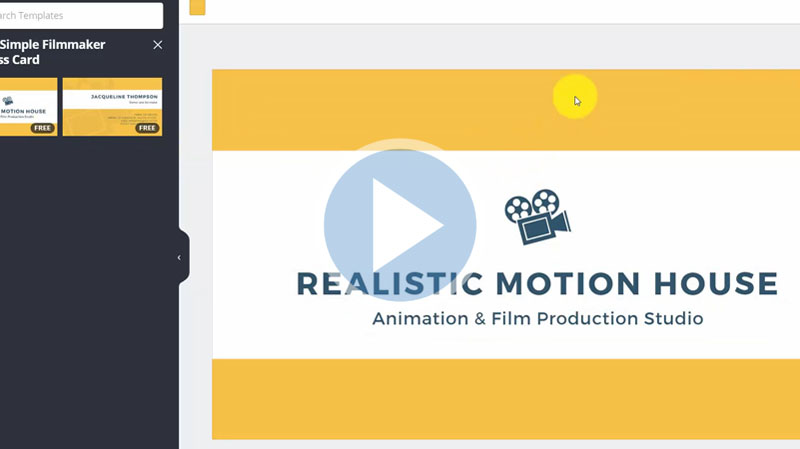
Canva has output to business card design. In this video, you will learn how to design and print business cards using Canva.
Lesson 23 - Output to Posters
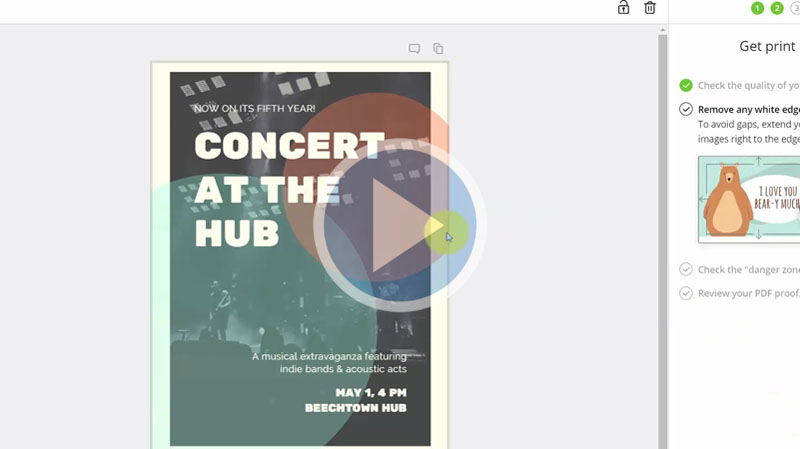
You can create and print posters using Canva. In this video, you will learn how to design and print posters using Canva.
Lesson 24 - Output to Flyer
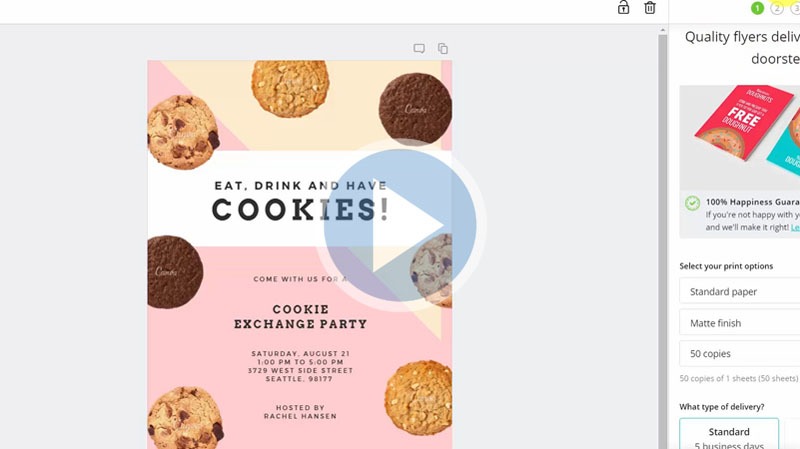
You can output your content into a flyer. In this video, you will learn how to design and print a flyer using Canva.
Lesson 25 - Output to Postcards
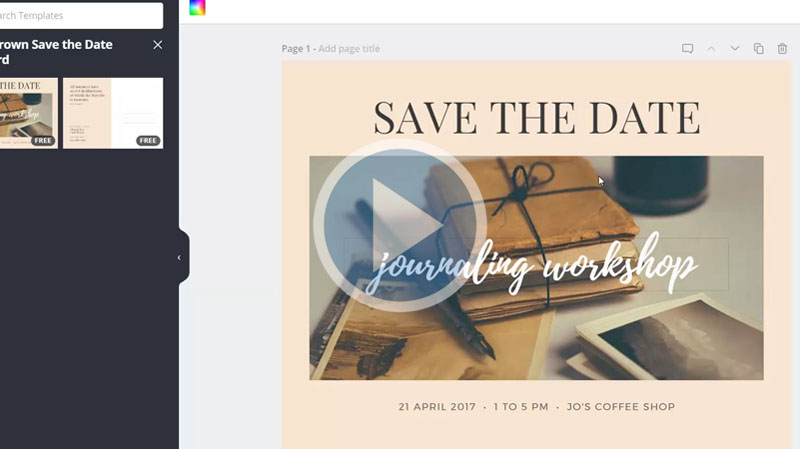
You can create and have your postcards printed. In this video, you will learn how to create and print postcards using Canva.
Lesson 26 - Output to Invitations
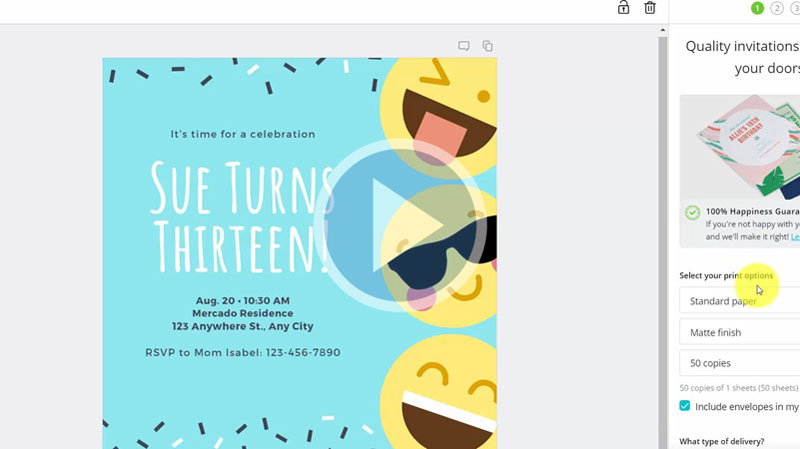
You can create and print your invitations. In this video, you will learn how to create and print invitations using Canva.
Lesson 27 - Canva For Work Trial
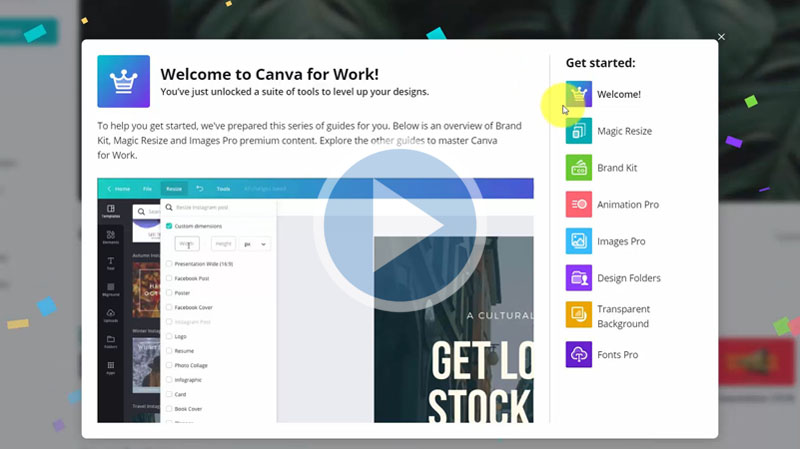
Upgrading your Canva enables you to use Canva for work, which will give you access to more design tools. In thisvideo, we will take you through the process of upgrading your free Canva.
Lesson 28 - Resizing Templates
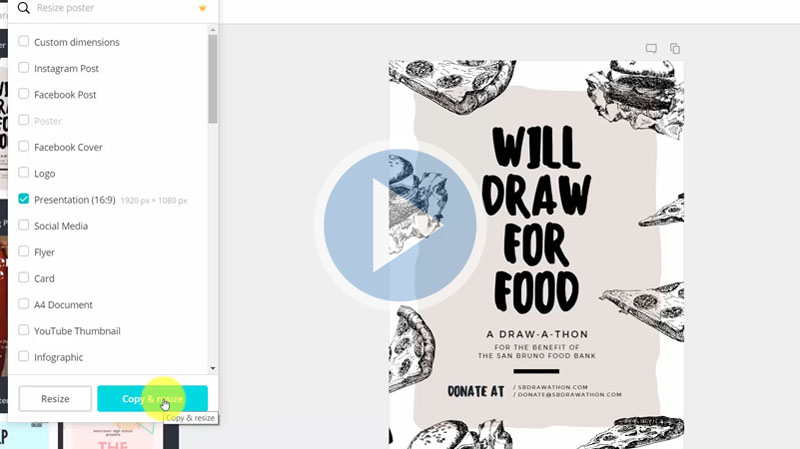
You might want to change your design format. In this video, we'll show you how to re-size your template design using Canva for work.
Lesson 29 - Canva For Work Brand Kit
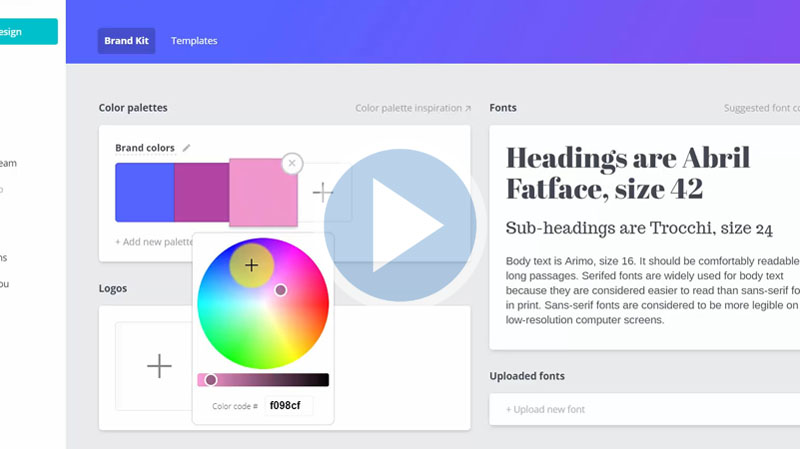
Canva for work gives you access to a fully functioning Brand kit with many colours. In this video, we will show you how to add colours into the colour palette, upload new fronts.
Lesson 30 - Canva For Work Animation
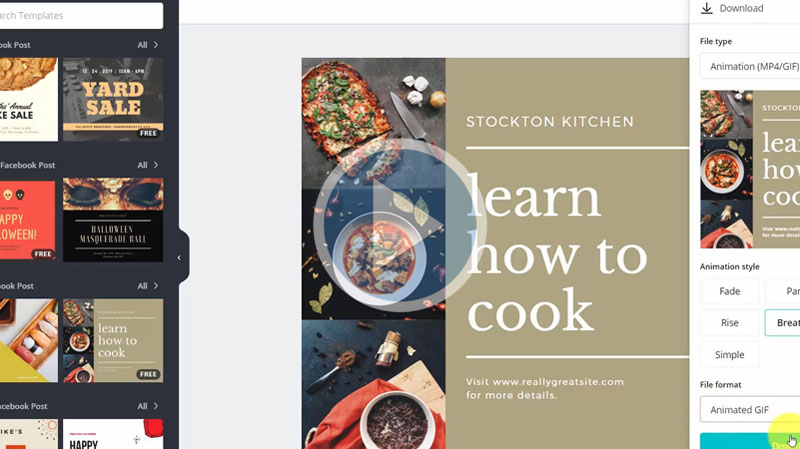
In this video, we’ll take you through the process of downloading your completed Canva image. You may download your image as a GIF file, MP4 file, or animated image using Canva for work.
Lesson 31 - Access to High Quality Images
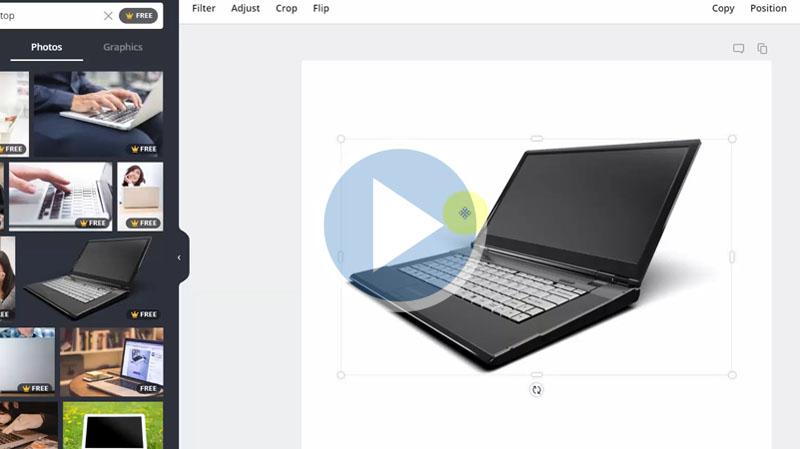
Unlike the free version of Canva, Canva for work gives you access to high-quality images. In this video, you will learn how to add and edit quality images in your Canva design and as well share your edits with your team.
Lesson 32 - Canva for Work Folders and Storage
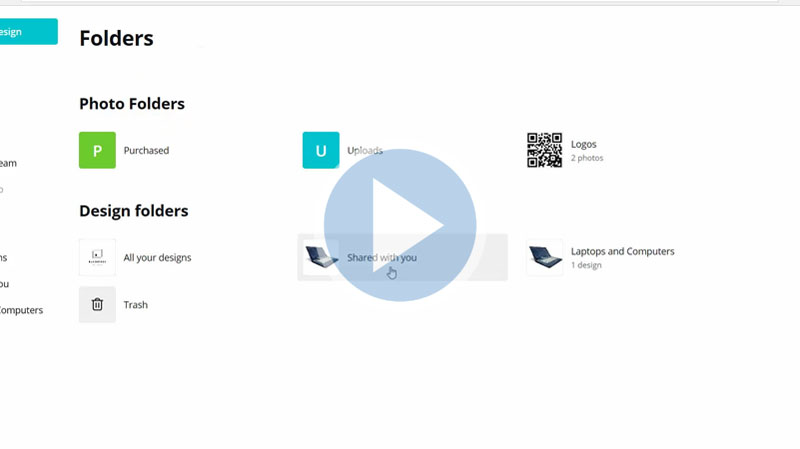
Canva for work gives you access to design folders. In this video, you will learn how to create a design, store it in a folder, and share folders with your team members.
Lesson 33 - Creating Transparent Background
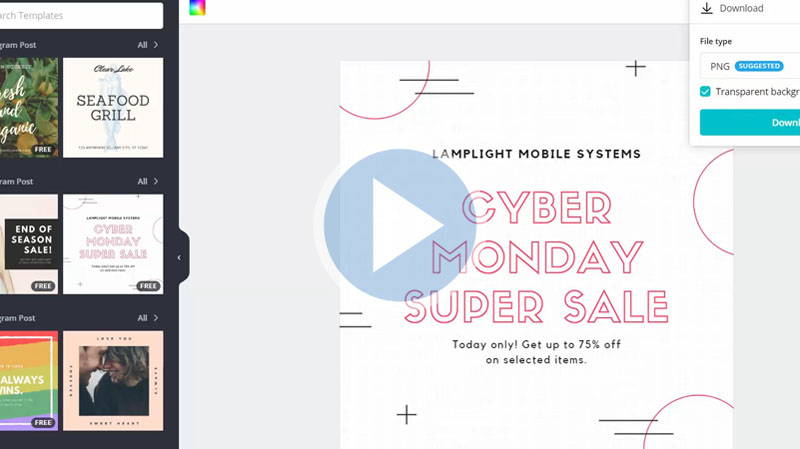
With Canva for work, you can create content with a transparent background. In this video, you will learn how to create and download an image without background.
Lesson 34 - Adding Special Fonts
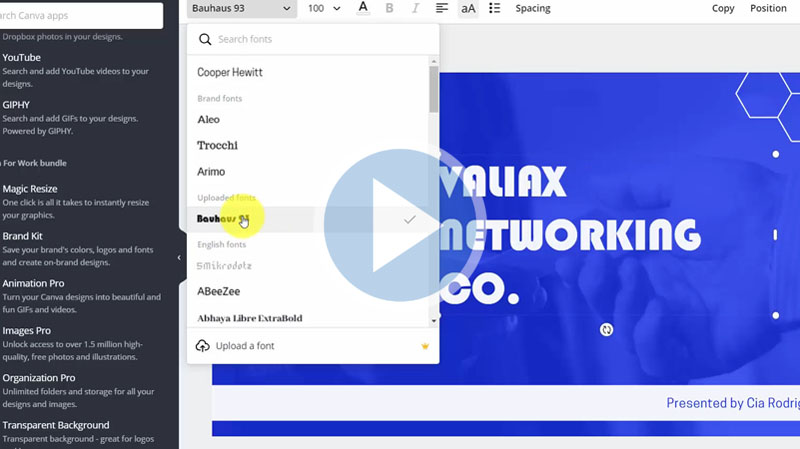
Canva for work gives access to special fonts. In this video, you will learn how to upload new fonts and change fonts on your templates.
Lesson 35 - Linking Canva for Work to Pinterest
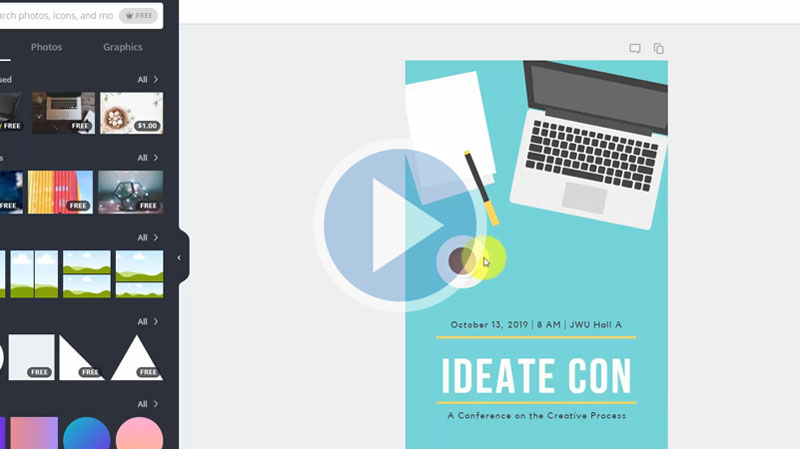
You can link your Canva for work to your Pinterest account. This video will show you the process of uploadingyourPinterest image to Canva
Lesson 36 - Designing Business Card
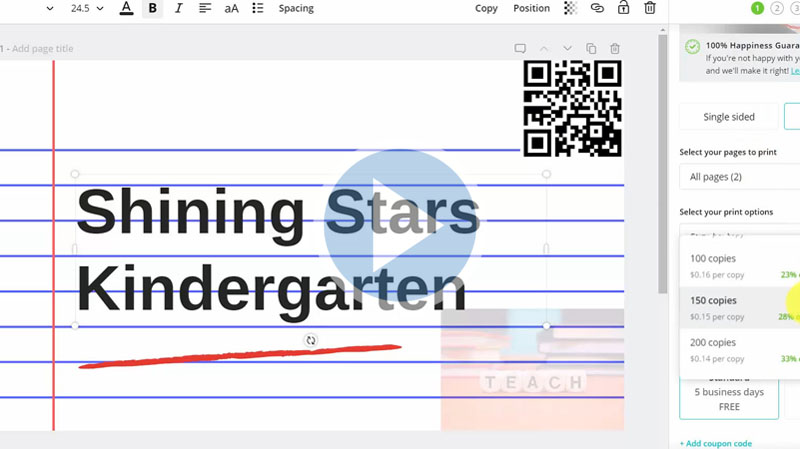
In this video, we will take you through the process of designing a business card and getting it ready to order through Canva. You can change the background, add logos, flip the orientation, etc.
Lesson 37 - Designing Facebook Event Cover
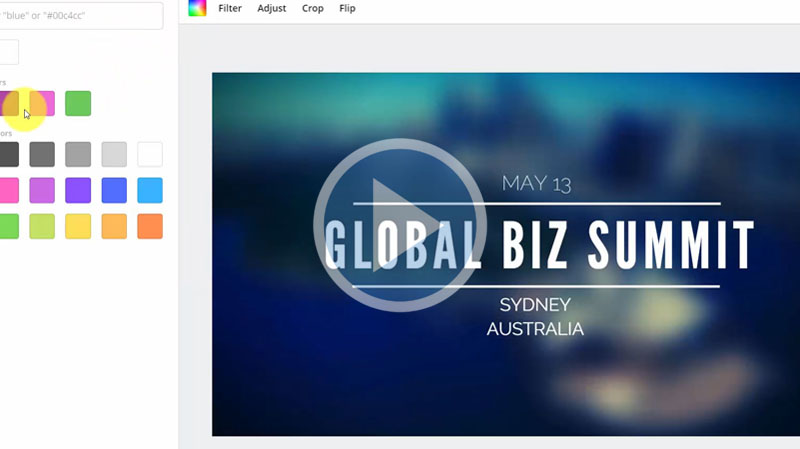
In this video, we'll show you how to set up your Facebook page cover or Facebook event cover image using Canva to get attention for your event.
Lesson 38 - Instagram Post
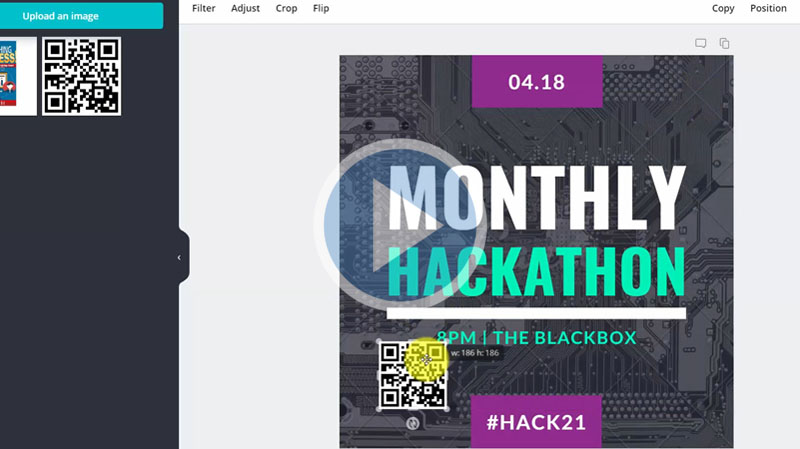
Canva for work gives you access to high-quality Instagram image posts. In this video, you will learn how to design image templates for Instagram posts.
Lesson 39 - Creating YouTube Thumbnails
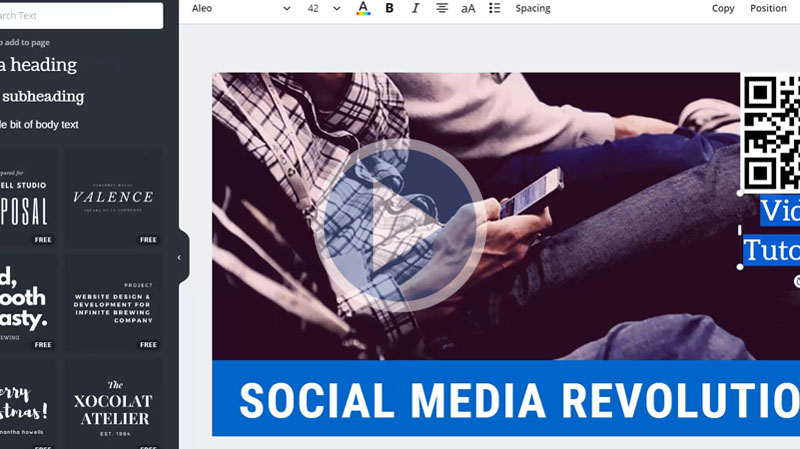
You can create YouTube thumbnails using Canva. In this video, we’llshow you how to create a YouTube thumbnail for your YouTube video.
Lesson 40 - Conclusion
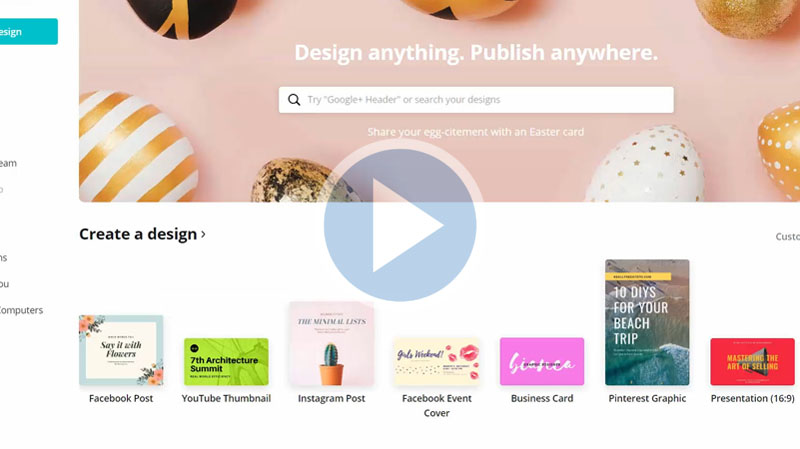
This video gives a summary of the different functions you can perform using Canva for work. This includes Canva template formats, editing elements, and output content.
Not Sure What to Do with Graphics Content?... Here are 6 Ways to Profit with Graphics!
 Method #1 - Share Strategically on Social Media – You can’t have any type of marketing strategy today without using social media. Infographics are particularly friendly to social media because social media is very visual in nature.
Method #2 - Use on Your Sales Pages – Infographics are a great way to depict the benefits of your products and services to your audience. Make a list of all the benefits that your product offers and try to figure out a great way to depict each benefit in story form right on your sales pages.
Method #3 - Include in Your Blog Posts – Hands down; the most important way to get information to your audience today is your blog. Content on your blog is more important than content anyplace else. Don’t treat your graphics differently; start with them on your blog.
Method #4 - Add to Your Website’s About Page – If you want to tell your audience a lot about you, turn your story into an infographic. Remember that most people only take about three minutes to look at an infographic, so keep that in mind when you create it.
Method #5 - Use as Brand Promotion – Create a graphic like an infographic about the story of your brand to get the word out about what it is that you do for your audience.
Method #6 - Draw Out Your Marketing Goals - All marketing starts with a goal so why not turn it into a graphic that you can print out and place on your wall? Not only will you gain clarity of where you're going but it'll help to maintain focus and stay on the right track with every accomplishment you achieve!
Even More Marketing Power that Graphics Give You...
Easily Shared – Not only is it easy to share an infographic with a click, but they are also more likely to be shared than text. They are acceptable content on Twitter, Facebook, Pinterest – among others – and are usually well received by most.
Spread Brand Awareness – If you want to spread brand awareness, having an infographic developed for your “about page” is a really good idea. It will ensure that your visitors are more likely to read it, and understand what your business is truly about when they finish.
Demonstrate Expert Level Understanding – Creating graphics like an infographic requires a deep level of understanding of a topic. If you don’t have that, it will be difficult to create an infographic that means anything.
Increase Website Traffic – Since they are more likely shared, you’re going to get more website traffic. Learning to create an embed code can help your traffic go up even faster by giving people permission to embed your infographic into their sites, which people will click and be taken to your website.
Improve SEO – Most people will say that infographics do not help SEO, but the truth is they do. They improve links to your site and offer proof of understanding of a topic, thus increasing your expert status level. And if you add keywords to the “alt” tags, a textual description of the information in the infographic, plus the infographic, it will improve SEO.
With all this in mind it makes perfect sense to use graphics in your marketing strategy. With the right tools and know-how there are a plethora of content you can create which will help you in almost ALL area of your online business.
Grab this course today and start using Canva like a pro... even if you have ZERO design experience and no eye for art and design!
Your Purchase is Backed by Our 100% Satisfaction Guarantee!
 You're now one step closer to building an online business that you've always wanted. Our training videos were created for marketers so you're getting REAL training that you need and refer back to time and time again.
When you invest in this course today you're backed by a ‘No Like No Buy’ guarantee. If you feel that these videos did not help you in anyway then send us an email requesting for a full and prompt refund.
How can we make such a confident guarantee? Simple. Firstly because we know that these videos are packed full of value - stuff that they don't teach you in school and secondly because we were once in your shoes and know what it's like to go through this steep learning curve.
You're getting access to the exact information we needed years ago but had to learn ourselves the hard way. Order now in complete confidence and we'll deliver this course to you immediately.
It Couldn't be Easier! Watch, Learn and Apply what you Need to Know... When you Need to Know it!
You have absolutely every reason to become successful online and with all this knowledge at your fingertips nothing will hold you back.
Use your new found knowledge to learn, grow and expand so you can attract more prospects, customers and clients.
Listen... it's not about trying to re-invent the wheel. Sometimes all it takes is knowing how to work with what's already in front of you to get the results you need.
Secure your videos now and you can start watching and applying these powerful methods within minutes from now! Click the order button below to get started...
Watch a sample video below to get started...
Secure Your Order Now and Create 100s of eCovers & Social Graphics Fast.. Build a Massive Following and Attract Buyers Even if You're Terrible with Graphics!
Finally Discover How to Create YouTube Thumbnails, Facebook Posts, Infographics, Motivational Posts, eBook Covers, Headers, Banners, Business Cards, Posters, Flyers, and More... in a Drag-Drop and Click Fashion!
Regular Price $27
Your Price Only $9.95


To Your Success! Theoda Metcalf and Aaron Danker
Your online teachers passionate in helping you succeed!

Theoda has a passion for internet marketing with plenty of experience and a growing knowledge of the industry. Theoda is comitted to helping you grow your online business and achieve real tangible results that you can be proud of. If you have any pre-sale questions about this product, please contact support@shopanpop.com for help and support and your questions will be answered you as soon as possible.

Aaron Danker is an established internet marketer with over 10 years of online experience. He provides high level turn-key solutions, website installation services and coaching to share his knowledge and expertise with dedicated students. This product is the result of years of marketing experience all condensed into one powerful and easy-to-use learning platform to help solve problems many entrepreneurs face.
Click Here to Secure Your Order Now