Disclosure: This page may contain affiliate links. I may earn a commission at no extra cost to you if you purchase through one of these links.
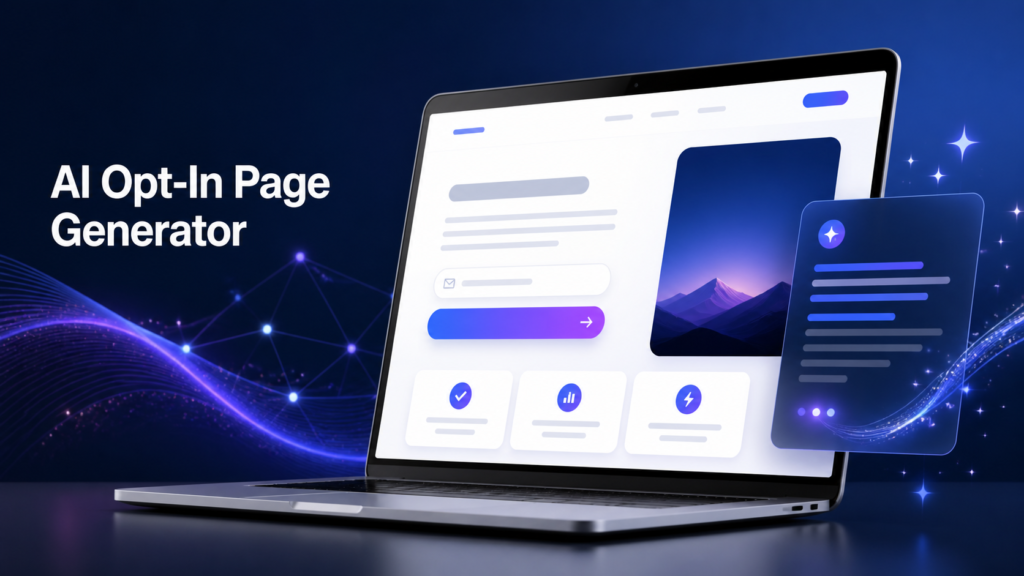
Building an opt-in page can feel like a surprisingly large project. You need a headline, benefit-focused copy, a clear call to action, a working form, a suitable layout and HTML that displays properly on different screen sizes. My AI Opt-In Page Generator is designed to simplify that process: It Makes The Lead-Capture Page And The Copy For You using information you provide about your offer, audience, form and visual assets.
Instead of starting with an empty document or trying to connect several tools, you follow a guided Super Prompt. The goal is to turn your inputs into an original, mobile-optimized lead-capture page delivered as one standalone HTML file. You can then review the file, make any necessary edits and upload it to your own server.
This guide looks at how that workflow works, who it may help and what you should check before publishing. It does not guarantee more traffic, subscribers or sales. The quality of any page still depends on your offer, audience, messaging and promotion.
What Is My AI Opt-In Page Generator?
My AI Opt-In Page Generator is a guided page-creation system for marketers and small online business owners who want to build opt-in pages without manually handling every copywriting, design and coding task. Sales System Review: A Beginner-Friendly Guide to AI Sales Copywriting
You supply the important details, including your offer, actual opt-in form code and any assets you want on the page. The guided Super Prompt uses those details to produce the page copy and layout in HTML.
The result is intended to be a standalone file rather than a project tied to a complicated page builder. That can be helpful if you already have web hosting and want a page you can upload directly to your server.
What the generator is intended to handle
- Organizing your offer into a focused lead-capture page
- Drafting headlines, benefit statements and calls to action
- Creating a clear page layout
- Adding the real opt-in form code you provide
- Including approved images, logos or other supplied assets
- Producing a mobile-optimized standalone HTML file
This does not remove you from the process. You are still responsible for giving the tool accurate information, checking the claims and testing the finished page.
Why Opt-In Pages Can Be Difficult for Beginners
An opt-in page has a simple purpose: encourage an interested visitor to submit information, usually an email address, in exchange for something useful. The offer might be a checklist, short guide, email course, discount, template or product update.
Although the goal is straightforward, the page must bring several elements together. The headline needs to attract the right person. The copy must explain the benefit without exaggeration. The form has to connect correctly to an email service. The design should work on both desktop and mobile devices.
A beginner may be able to write the copy but struggle with HTML. Another business owner may understand the technology but spend hours deciding what to say. A guided generator aims to reduce these common points of friction.
How the Guided Workflow Works
The central idea is to give the generator useful source material rather than asking it to create a page from a vague request. Better inputs generally make it easier to produce a relevant first draft.
Step 1: Define your offer
Start by describing exactly what visitors receive. Avoid broad phrases such as “a useful free report.” Explain the format, topic and practical purpose.
For example, a bookkeeping consultant might offer a downloadable month-end checklist for solo business owners. A fitness coach might offer a seven-day meal-planning worksheet. These descriptions give the generator something specific to communicate.
Step 2: Identify the intended audience
Describe who the page is for and what problem they are trying to solve. A page for first-time Etsy sellers should sound different from a page for experienced marketing consultants.
Include the audience’s experience level, main concern and desired next step. Do not include private customer information or confidential business data in your prompt.
Step 3: Collect your real opt-in form code
Retrieve the embed code from your email marketing or autoresponder service. Using the real code is important because a decorative form that is not connected to your list cannot collect subscribers correctly.
Check which fields your form requests. Asking only for an email address may create less friction, while requesting a name can support more personalized emails. The right choice depends on your follow-up plan and data requirements.
Step 4: Prepare your assets
Gather any logo, product mockup, cover image, icon or brand color you want to use. Make sure you own the assets or have permission to publish them.
Large images can slow down a page, so resize and compress files before uploading them. Add clear alternative text where appropriate to support accessibility.
Step 5: Follow the Super Prompt
Enter the requested information carefully. Include the offer, audience, benefits, form code, assets and preferred tone. You can also identify words or claims that should not be used.
The prompt then guides the creation of the copy and layout. Treat the output as a structured draft, not as something that must be published without review.
Step 6: Save and upload the HTML file
Once the page is generated, save the complete code as an HTML file. Upload it to the appropriate folder on your web server and visit the live URL to confirm that the page loads.
If you are unfamiliar with your hosting control panel, create a backup before changing existing files. You can also ask your hosting provider how to upload a new standalone page without replacing your current website.
A Practical Opt-In Page Example
Imagine that you sell digital planning resources for freelancers. You want to offer a free weekly project tracker to introduce potential customers to your brand.
Your inputs could include the following:
- Offer: A one-page printable weekly project tracker
- Audience: Freelancers managing several client deadlines
- Main benefit: See current tasks, priorities and due dates in one place
- Format: Downloadable PDF
- Form: Your email provider’s working embed code
- Assets: A tracker preview image and your business logo
- Tone: Practical, calm and beginner-friendly
The generator could use those details to organize a headline, short explanation, benefit list, image area, opt-in form and privacy note. You would then confirm that the tracker description is accurate, the preview image works and the form adds test submissions to the correct email list.
What to Check Before Publishing
AI-assisted output can save setup time, but human review remains essential. A polished layout does not automatically mean every statement, link or technical element is correct.
Review the copy for accuracy
Remove unsupported promises and make sure the page describes the offer honestly. The visitor should understand what they will receive and whether they are also joining an email list.
Check spelling, grammar, tone and consistency. Replace generic wording with details that reflect your actual offer.
Test the form from beginning to end
Submit a test email address on both desktop and mobile. Confirm that the contact reaches the intended list, the confirmation page opens and the promised resource is delivered correctly.
If you use double opt-in, verify that the confirmation email and confirmation link work as expected.
Check privacy and compliance requirements
Include an appropriate privacy notice and explain how subscriber data will be used. Depending on your location and audience, you may need consent language, a privacy policy link or other disclosures.
Laws and email platform rules vary, so seek qualified guidance when you are unsure. A generated page is not a substitute for legal advice.
Inspect the mobile layout
Open the page on multiple screen sizes. Look for oversized images, tiny text, clipped form fields and buttons that are difficult to tap. Mobile optimization should always be verified on the finished page.
Check page speed and security
Compress heavy images, remove unnecessary scripts and use HTTPS on your domain. Review third-party code before publishing it, particularly if it was copied from an unfamiliar source.
Potential Benefits for Small Online Businesses
The most obvious benefit is a more streamlined starting point. You do not have to write every section, design the layout and assemble the HTML separately.
A standalone file may also offer flexibility. You can store it on your own hosting, edit the source code and use a URL on your domain. However, you still need suitable hosting and enough technical confidence to upload and maintain the file.
The guided process can also help beginners remember important page components. Rather than staring at a blank screen, you work through questions about the audience, offer, benefits, assets and form.
Important Limitations to Consider
No page generator can make a weak or irrelevant offer automatically appealing. If visitors do not need the resource, changing the layout may have little effect.
The system also cannot guarantee traffic or conversion results. You still need a suitable promotion strategy, such as relevant content, social media, partnerships or paid advertising that you can afford to test.
Generated copy may require substantial editing when an offer is technical, regulated or highly specialized. You should also verify current product features, usage terms and any PLR or commercial rights before buying or distributing materials. Do not assume a particular license is included unless the official terms say so.
Who May Find This Tool Useful?
My AI Opt-In Page Generator may suit bloggers, affiliate marketers, coaches, creators and small business owners who have an email service and web hosting but want help creating a focused opt-in page.
It may be less suitable if you want a fully visual drag-and-drop editor, do not have access to web hosting or need complex functions such as member accounts, payments or advanced application logic.
Conclusion
My AI Opt-In Page Generator offers a guided way to combine your offer, real form code and approved assets into one mobile-optimized HTML lead-capture page. Its main appeal is straightforward: It Makes The Lead-Capture Page And The Copy For You, reducing the need to begin with a blank page or manually wrestle with the entire layout.
You should still review the copy, test the form, confirm mobile usability and check privacy requirements before publishing. Used with realistic expectations, it may provide a practical starting point for building a page on your own server.
Disclosure: The following is an affiliate link. If you purchase through it, the publisher may earn a commission at no additional cost to you.
Visit the My AI Opt-In Page Generator page to review the current features, terms and pricing.
Frequently Asked Questions
Does My AI Opt-In Page Generator provide the page copy?
Yes, the guided Super Prompt is designed to draft the lead-capture copy and organize it into a page. You should edit the output for accuracy, brand voice and compliance before publishing it.
Do I need to supply my own opt-in form code?
Yes. You provide the real embed code from your email marketing service so the finished form can connect to your list. Always submit a test address after uploading the page.
Do I need to know HTML?
You may not need to write the page HTML from scratch, but basic knowledge can help when saving, uploading or editing the file. Your hosting provider may be able to explain its file-upload process.
Will the generator host the page for me?
The stated workflow delivers a standalone HTML file that you can upload to your server. Check the current product details to confirm whether any hosting options or additional services are included.
Does the tool guarantee more subscribers or sales?
No. Results depend on factors such as your offer, audience, traffic quality, copy, follow-up emails and testing. A generator can help create the page, but it cannot guarantee business outcomes.
Can I use my own images and branding?
The workflow allows you to supply assets you want to use. Only upload images, logos and other materials that you own or are licensed to publish, and verify that they display correctly in the final file.