Friday 12th of June
From Theoda Metcalf and Aaron Danker
Your Online Marketing Teachers
Every sale that occurs online boils down to two things. Traffic and conversions. Despite the tons of available training on traffic generation, it's what you DO with the traffic once you get it that matters most.
Not convinced?... Anyone can buy good quality traffic, but not everyone can turn traffic into sales.
...For example if you send 1000 quality targeted visitors to a sales page and no one buys, then you know there's something wrong with the sales page.
...On the other hand, if you send 100 visitors to a sales page and you make a sale, break even or even turn a profit, then you know it's time to increase your ad spend.
So how do you improve your sales page and perceived value of your products?...
You could work on your headline... your sub-headline... write better sales copy... improve your guarantee... gather testimonials... add bonuses... adjust the price and so on.
But one of the most important aspects that determine whether or not your visitor wants to spend money with you is your sales page and perceived value of your product.
A sales page is the closest thing to having a real person explaining, guiding and pre-selling your visitor about the product. When done right a good sales page can double, even triple a typical conversion rate... And a conversion rate jump like this can make all the difference between a losing campaign, breaking even, and turning a consistent profit.
The question is how do YOU take advantage of this?... How do you put together convincing sales letters, sales videos, digital products and marketing content like blog posts, articles and videos, that presents your product in the BEST light and get people to like what you have to offer... so they eventual end up buying?...
One Way to do this is Through On-Screen Training Videos and Annotated Screenshots.
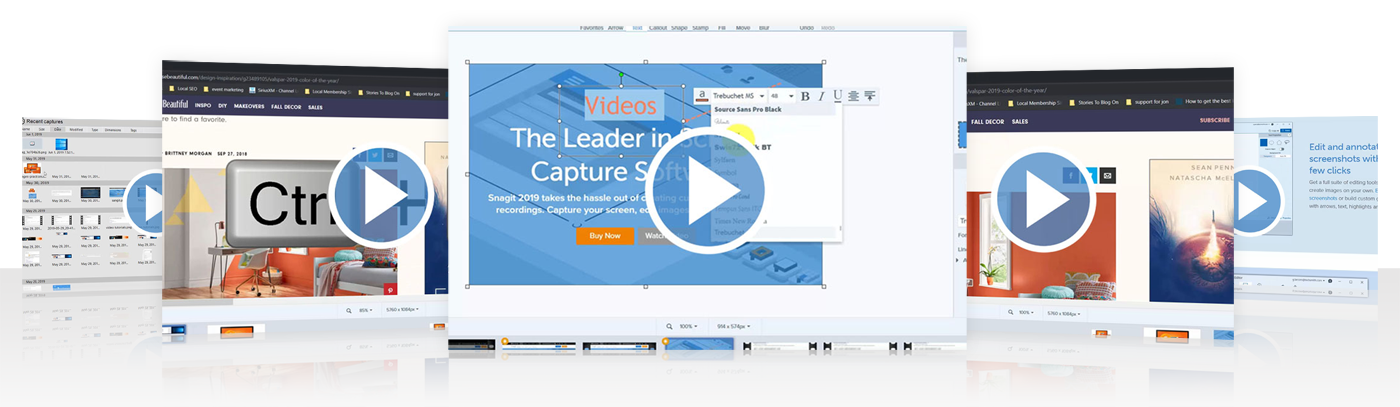
Think about it...when you need to perform a complex task for the first time you more than likely need to refer to a manual... a set of instructions.
Those instructions have to be clear, and presented in a logical step-by-step fashion. You go through the instructions page by page and by the end of it you complete the task and you're better off than when you first started.
This then leaves a lasting impression and so the next time you're offered another 'how to' guide, you'll more than likely go through the process again and even pay a premium for it if you get good results.
But how do you create such content?... How do you create how to manuals with annoted screenshots, whiteboard explainer videos, tutorials and more if you've never done this before?
Well worry not, because right now you can get your hands on 40 clearly explaing videos that walk you through the entire process. Here's a full breakdown of what you'll learn inside this course...
Lesson 1 - Overview
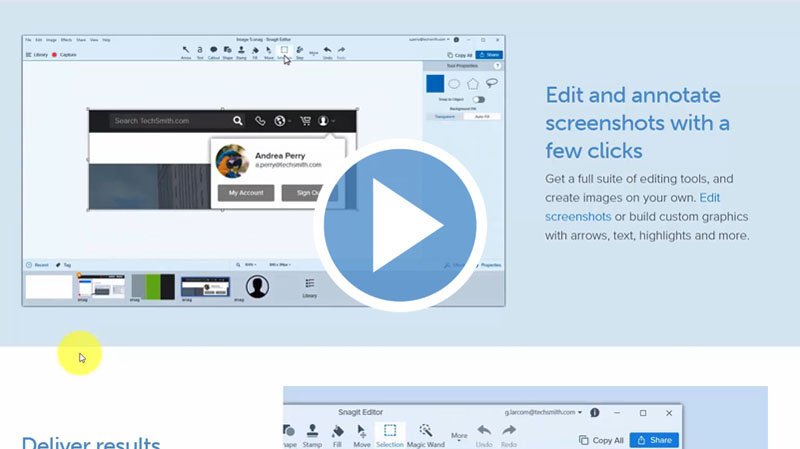
Snagit makes it easier and intuitive to capture images or record videos. In this video, we will introduce you to some of the functions you can perform on your image or video using Snagit.
Lesson 2 - Snagit Plans
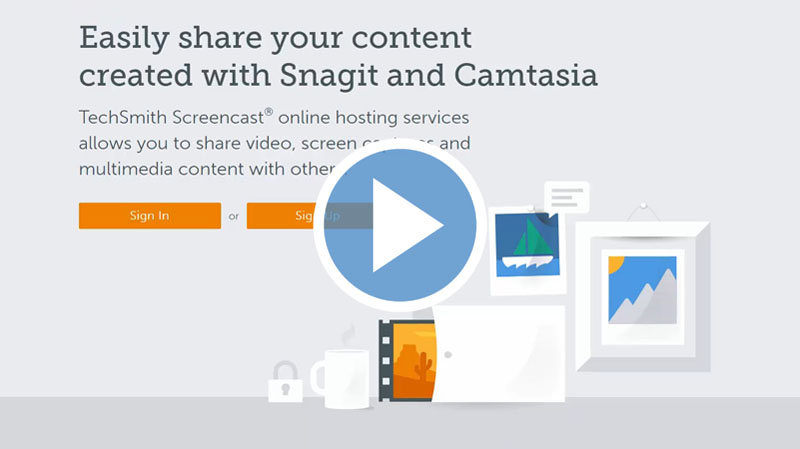
In order to start with Snagit, you can start with free trial. This video will guide you on how to purchase and download the Snagit program into your computer.
Lesson 3 - Snagit Interface
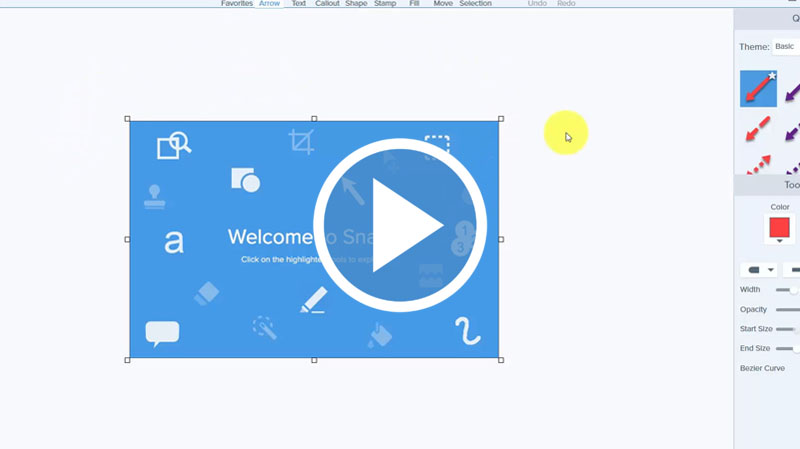
There are three primary ways to operate Snagit. In this video, you will learn how to use the Snagit editor and Snagit menu.
Lesson 4 - Snagit Capture Settings
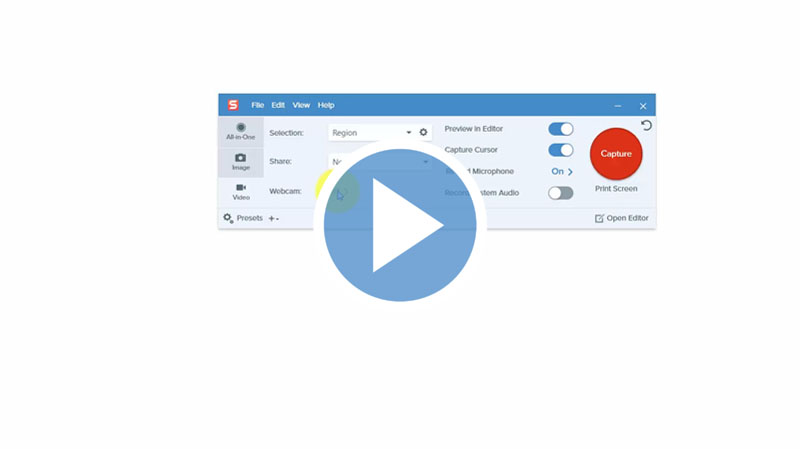
Your captured screenshot should automatically be previewed inside in your editor. In this video, we’ll explore some of the settings you can do to your image.
Lesson 5 - Snagit Menu Preferences
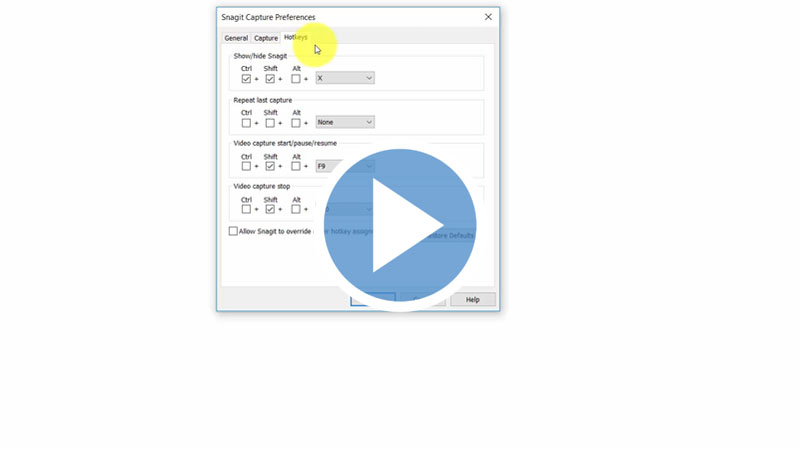
Each of the menu items in Snagit control certain functions. In this video, we will be exploring the Snagit menu items and their functions.
Lesson 6 - Using the All-in-One Capture Tool
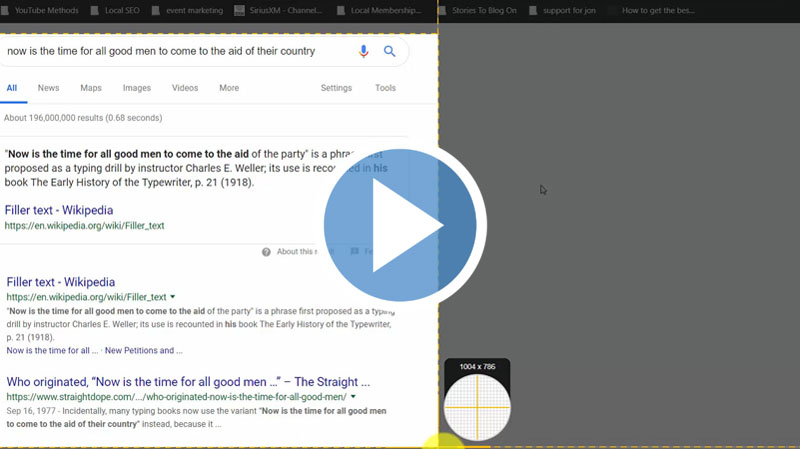
In this video, we’ll demonstrate how to use the All- in-One Snagit capture feature tocapture screenshot images.
Lesson 7 - Using the All-in-One Capture Tool to Create a Video
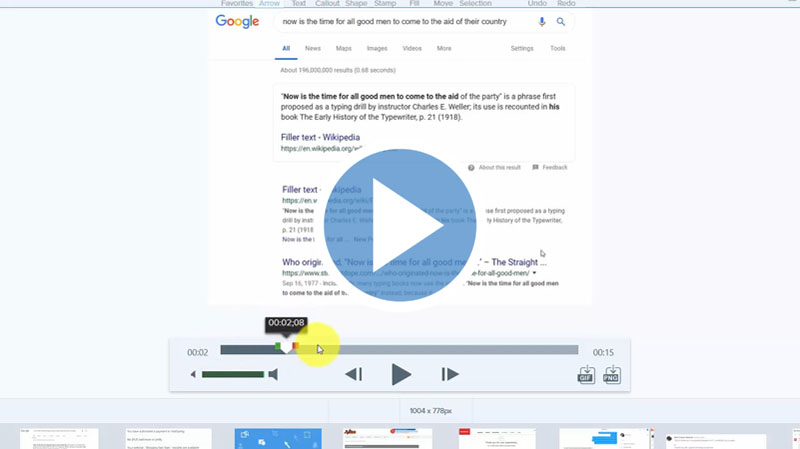
You can record a video from a captured screenshot image. In this video, we’ll demonstrate how to create a video using the All-In -One Capture Tool.
Lesson 8 - Using the All-in-One Capture Tool to capture a Panoramic Image Part 1
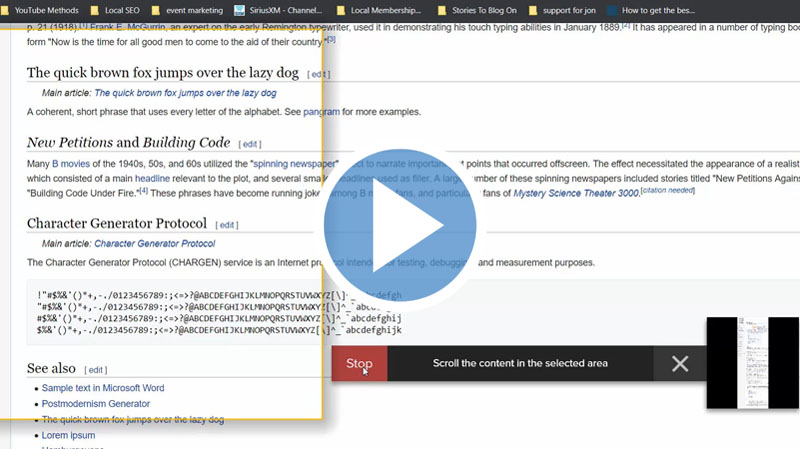
This video will show you how to capturea wider image area from your window using the All-In-One-Capture Tool.
Lesson 9 - Using the All-in-One Capture Tool to capture a Panoramic Image Part 2
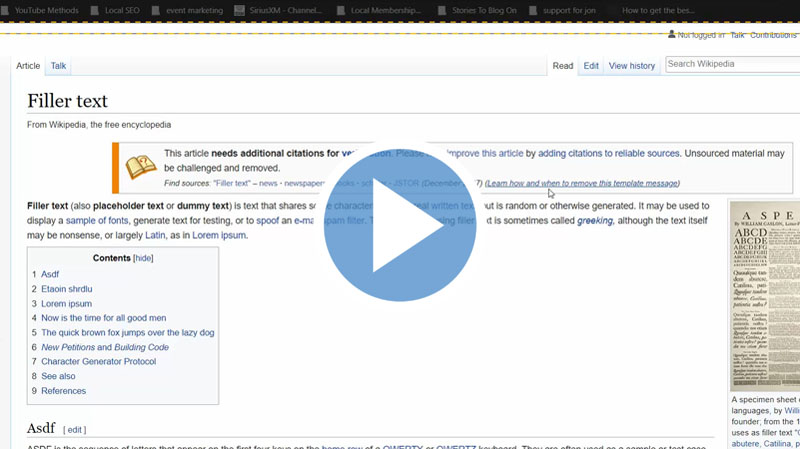
In this video, we will demonstrate how to set and adjust the width and the length of your captured Panoramic image.
Lesson 10 - Window Image Tab Selection
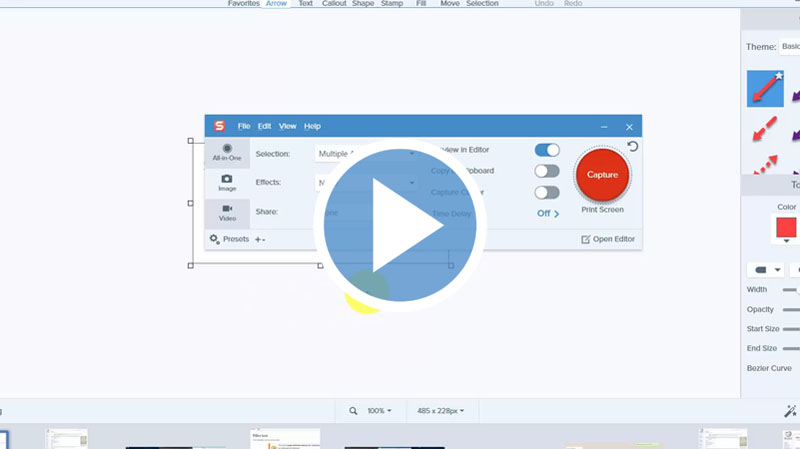
In this video, you will learn how to capture an entire window, sections, full screen or the scrolling window using the selection, effect and share box.
Lesson 11 - Using the Capture Window Image Tab Effects Box
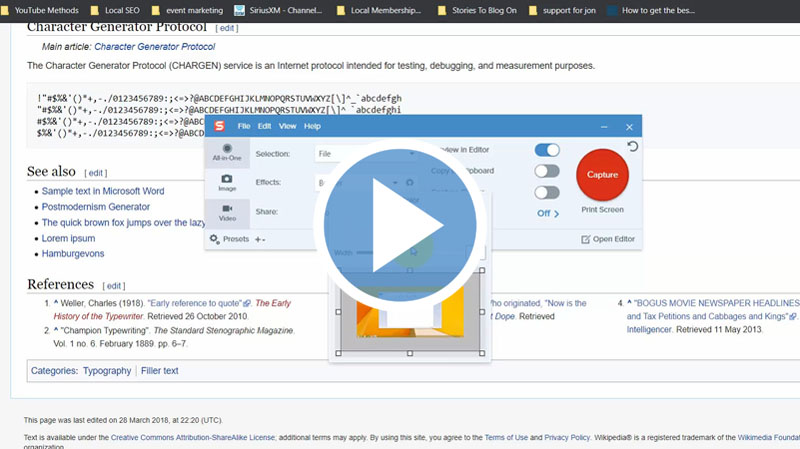
In the image tab, you will make a specific selection with each selection having a specific effect. In this video, you will learn how to add borders, shadows and filters to your captured image.
Lesson 12 - Using the Capture Window Effects Box Multiple Effects
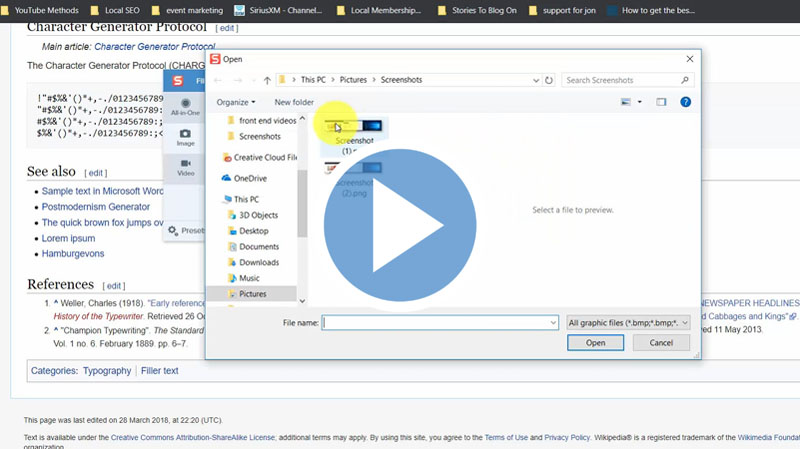
With the effects box, you can perform two effects at a time. In this video, you will learn how to add multiple effects likeborders and filters, customize the effects and then capture the image with the different effects altogether.
Lesson 13 - Using the Capture Window Share Box File and Formats

Within the image tab, there is a share dropdown menu box. In this video, you will learn how to capture and share your image files to email, PowerPoint, Excel, etc.
Lesson 14 - Using the Capture Window Share Box Microsoft Programs
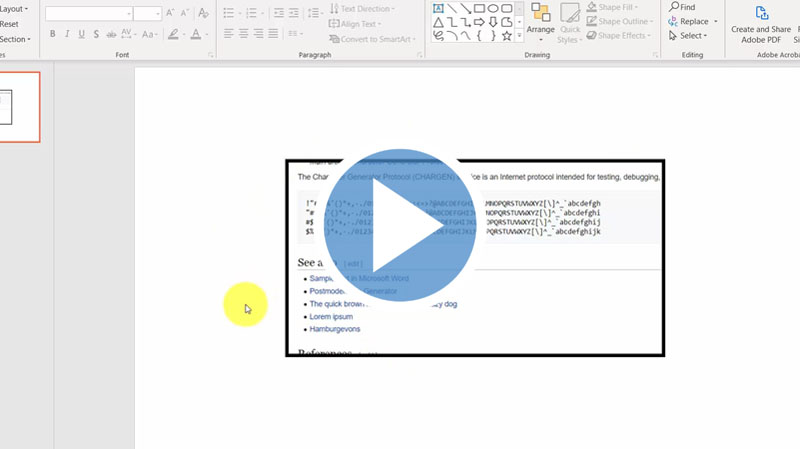
In this video, were going to look at sharing our files into desktop applications e.g., PowerPoint, Excel, Word, etc.
Lesson 15 - Using the Free TechSmith Screencast Hosting
TechSmith Screencast online hosting services allows you to share videos, screen captures and multimedia content with others. In this video, we show you how to access and create a Screencast account.
Lesson 16 - Sharing Your Image Content to Screencast
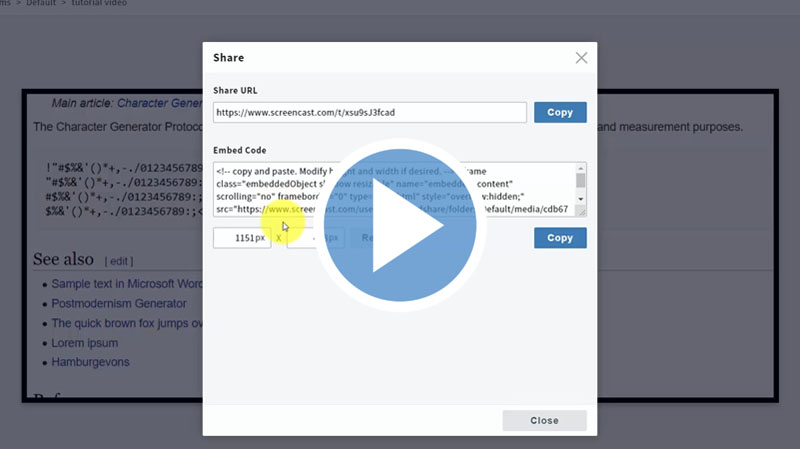
Once you have access to Screencast.com, you can set up a direct link for sharing created images. In this video, we’ll show you how to share your screenshot to your Screencast account
Lesson 17 - Sharing Image Content to Image Based Desktop Programs
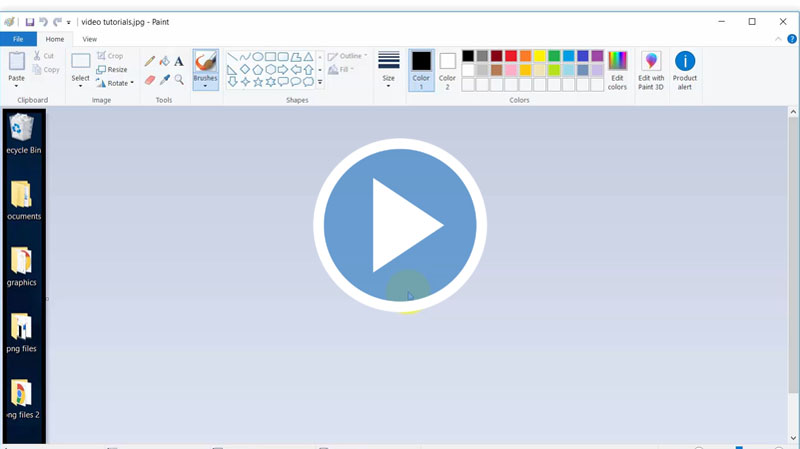
Snagit will allow you to share your screenshot into other desktop-based applications. In this video, we’ll show you how to share your image file into a desktop application e.g., Adobe or MS Paint for additional editing.
Lesson 18 - Sharing Images to Multiple Locations
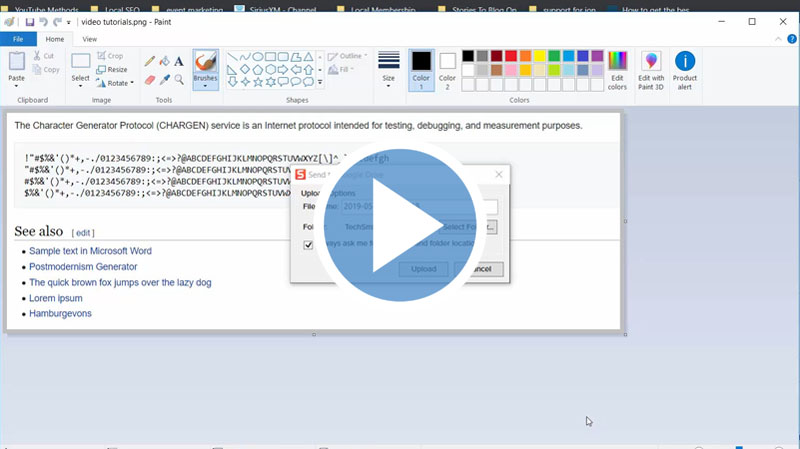
You can Shareyour image to Multiple Locations. In this video, we’ll show you how to share your image file to multiple applications in a single command.
Lesson 19 - Using the Video Recording Window
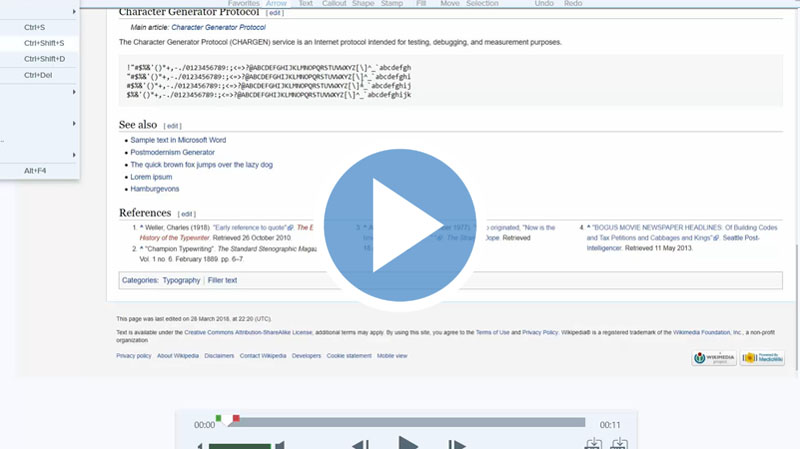
You can create a video with specific sections of your screen or you can record an entire window. In this video, we’ll show you how to record an entire window using a specific selected window size or a fixed size..
Lesson 20 - Sharing your Recording on Screencast
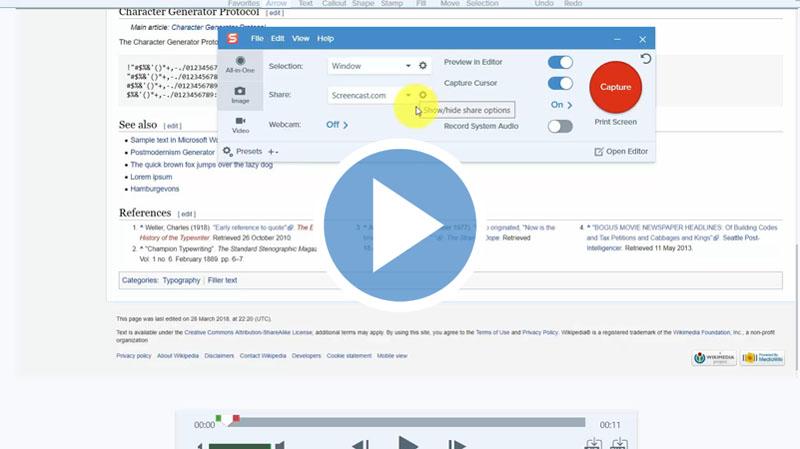
If your Screencast and Snagit account are already integrated, you can share your video using Screecast.com. In this video, we’ll show you how to use direct integration to share your video to Screencast.
Lesson 21 - Overview of TechSmith Snagit
TechSmith Snagit allows you to capture screenshots and videos. In this course, you will learn how work with elements inside Snagit to manipulate your screenshot using Snagit editing tools.
Lesson 22 - Snagit Editor File Menu Part 1
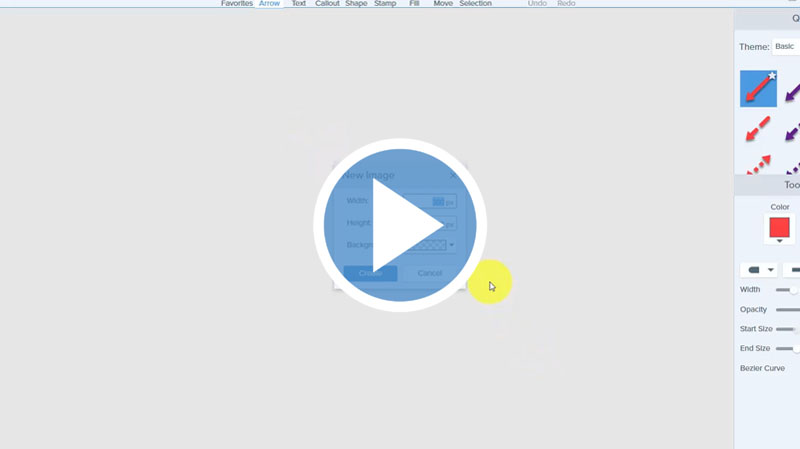
In this video, we'll show you how to use commands in the File dropdown menu in the Snagit Editor.?? You will be able tocreate images and perform actions like import, translate, etc.
Lesson 23 - Snagit Editor File Menu Part 2
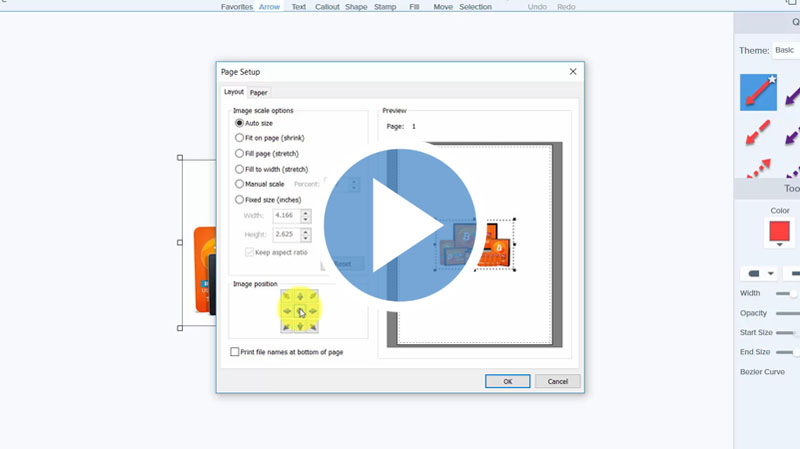
After creating and editing your image, you may want to print it. In this video, we'll take you through steps you can follow to print your processed image.
Lesson 24 - Menu Editor Preferences
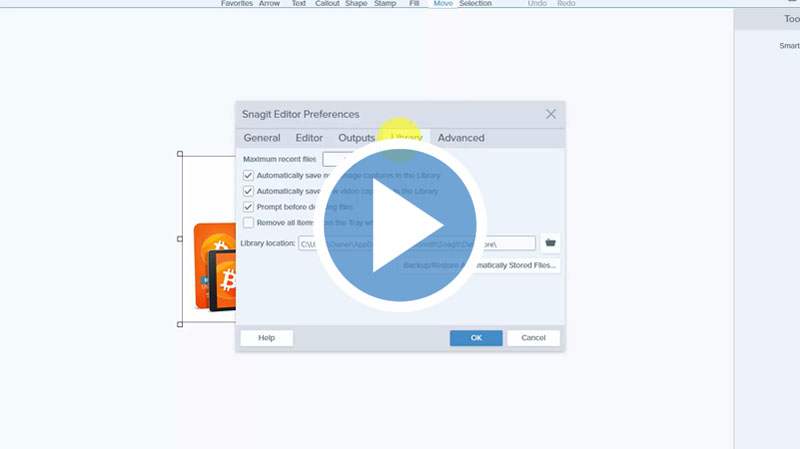
Snagit has an edit menu which contains editor preferences. In this video, we'll show you to customize your editor to fit your preferences by performing actions like spellcheck, outputs library, etc.
Lesson 25 - Introduction to the Tools Menu
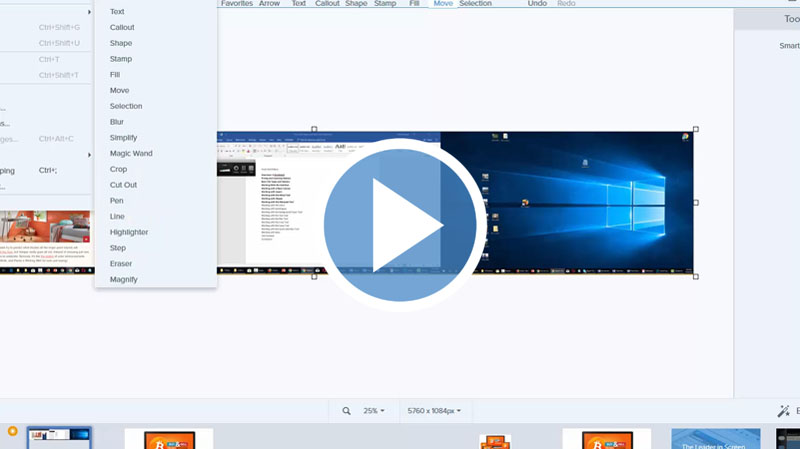
Typically, when you are working with an image inside your canvas, the menu you will be working with most often will be inside the image menu and the tools menu. In this video, we'll highlight the tools you can use to manipulate the image, add to the image, brand the image and otheractions you would want to perform on the image.
Lesson 26 - Working with Stamps
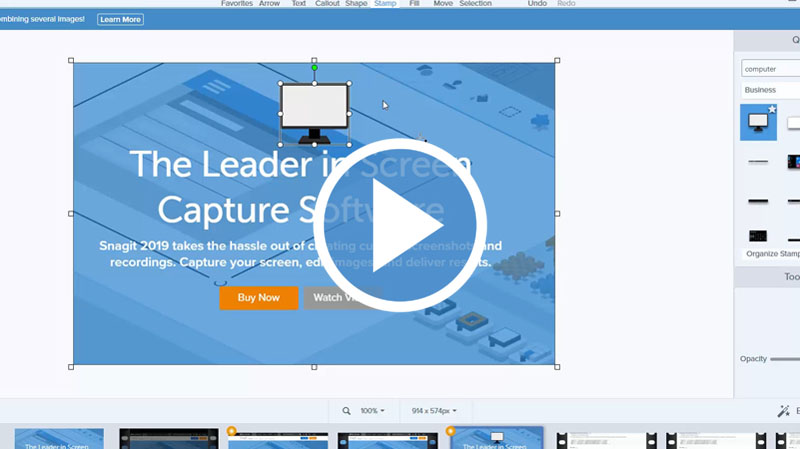
Stamps allow you to place the related content on your Screenshot. In this video, we’ll explore the tools menu and the shape elements; which contains different styles you can work with like styles and stamps. You will be able to select stamps and draw them on your screenshot.
Lesson 27 - Working with the Arrow and Text
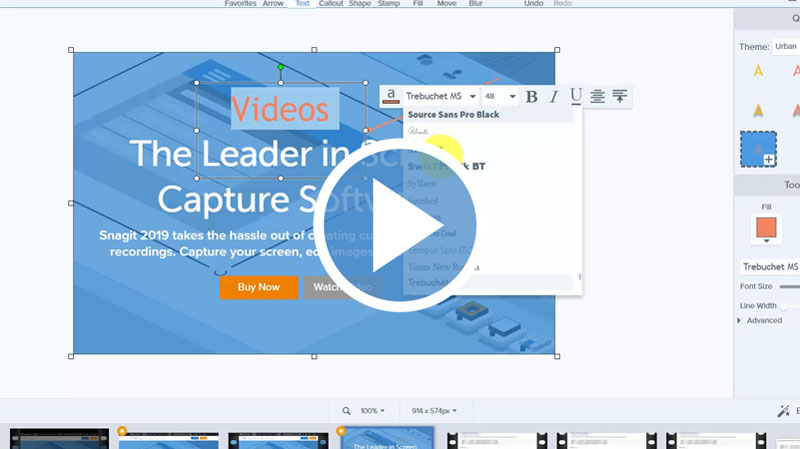
Snagit provides tools to work with the image inside your editor. In this video, we'll show you how to draw arrows on your imageand add texts to your image.
Lesson 28 - Working with the Callout tool

We can edit any image that we are working with by highlighting the element that we want to get rid of. In this video, we'll show you how to add texts using callouts.
Lesson 29 - Resize Image and Canvas

In this video, you will learn how to resize your image as well as your canvas. You will also learn to add resolution to your resized image.
Lesson 30 - Snapping and Canvas colour tools
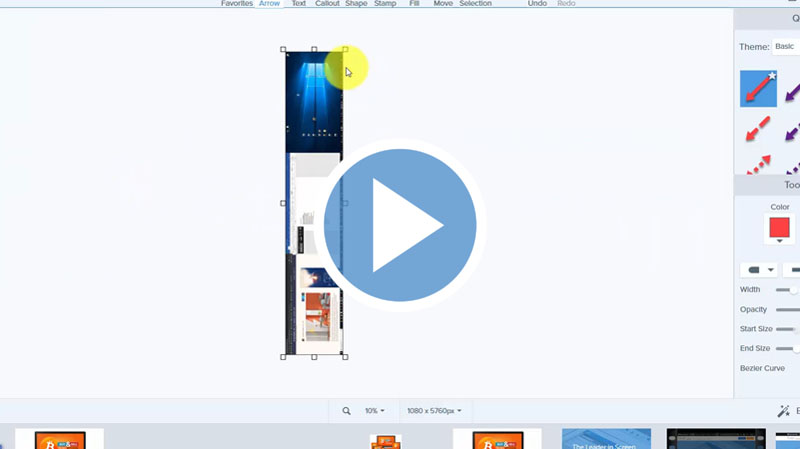
Snagit editor allows you to change the nature of the canvas and the appearance of your collection. In this video, we'll show you how to rotate your image and change the canvas colour.
Lesson 31 - Using the Library
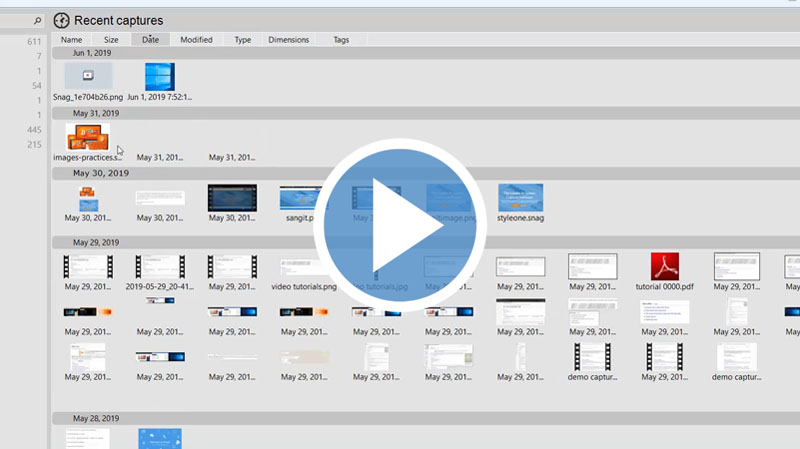
Snagit organizes and arranges all captures that you have done with the program even in previous versions. In this video, we'll show you how to access your captured images, videos, animated GIFs related tothe Snagit editor library.
Lesson 32 - The View Menu
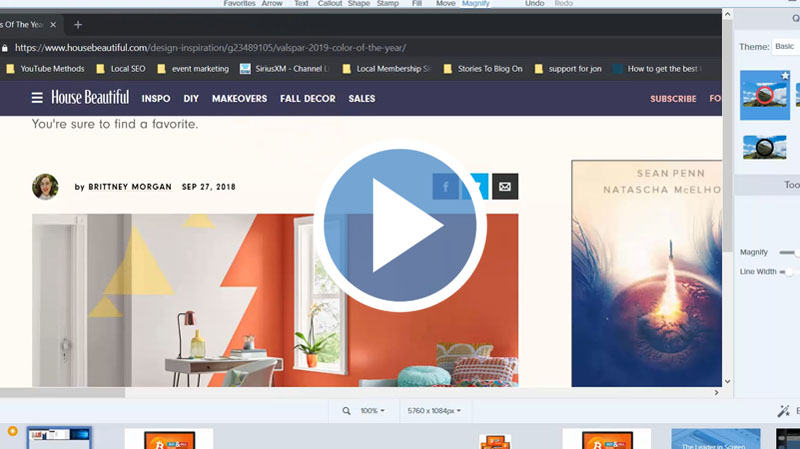
To work with an image, in some cases you may need to adjust the size of your screen or canvas in order to see everything you want to do. In this video, you will learn how to customize your canvas for clarity using the view menu.
Lesson 33 - Zoom in and Out Tools
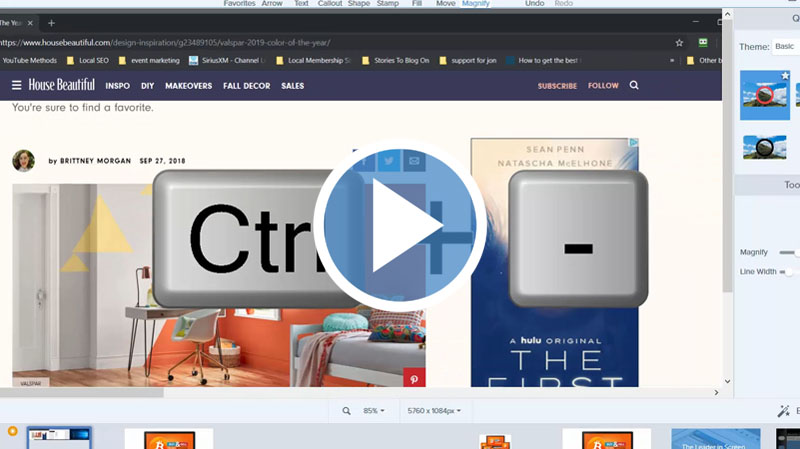
In this video, you will learn how to zoom in or zoom out your image according to the size you would like to work with. You can also zoom in or out to fit your image into your canvas.
Lesson 34 - Image Menu Effects and Arrange Tabs

You can use both the effects menu and the arrange menu for in order to create your image in its final form. In this video, you’llexplore how to use effects likeborders and shadows, and how to arrange the elements in the image.
Lesson 35 - Image Menu Move tool
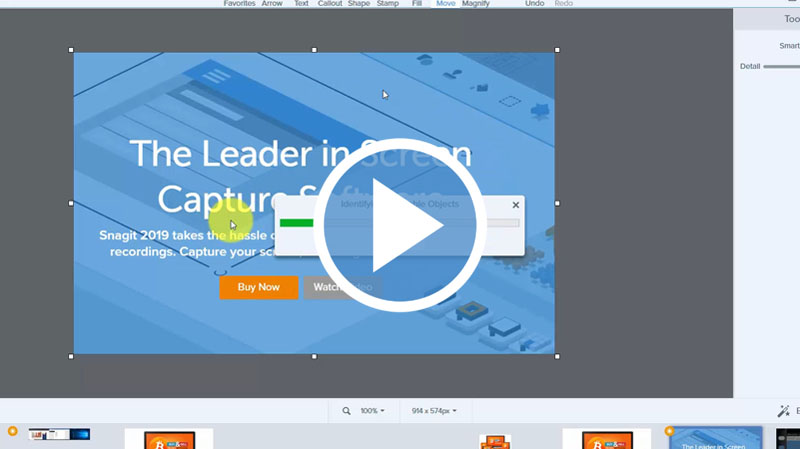
In this video, we will demonstrate how to use the move tool. The move tool allows moving of elements inside the image.
Lesson 36 - Image Menu Blur Tool
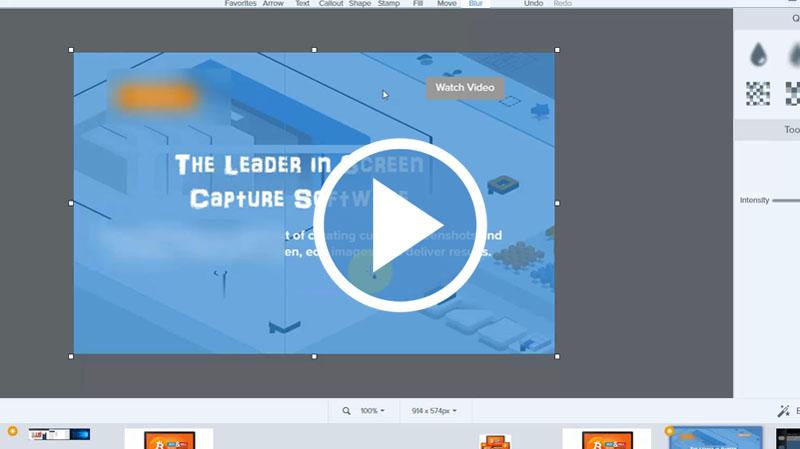
When you have sensitive information on your screenshot, you may want to get rid of it. In this video, we'll show you how to blur the sensitive information on your image.
Lesson 37 - Canvas creation
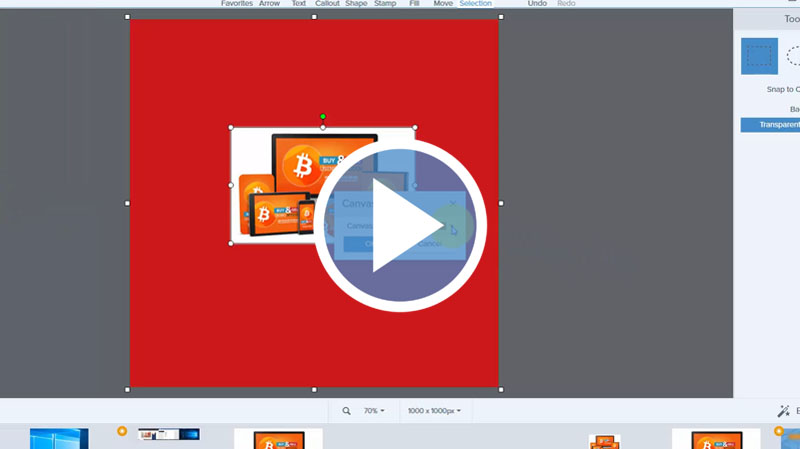
In this video, we will show you how to create a new canvas for a new single or new multiple image.
Lesson 38 - Canvas Creation with Multiple Images
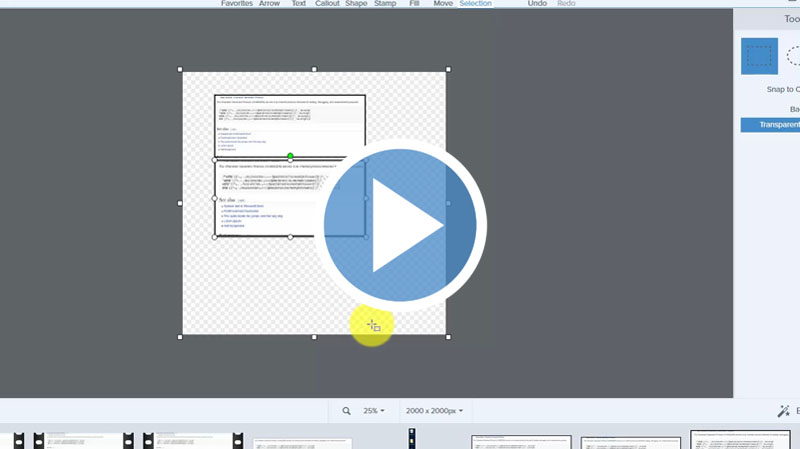
In this video, we'll show you how to capture multiple screenshots within a single image on your canvas.
Lesson 39 - Turning Video into GIF Using Editor
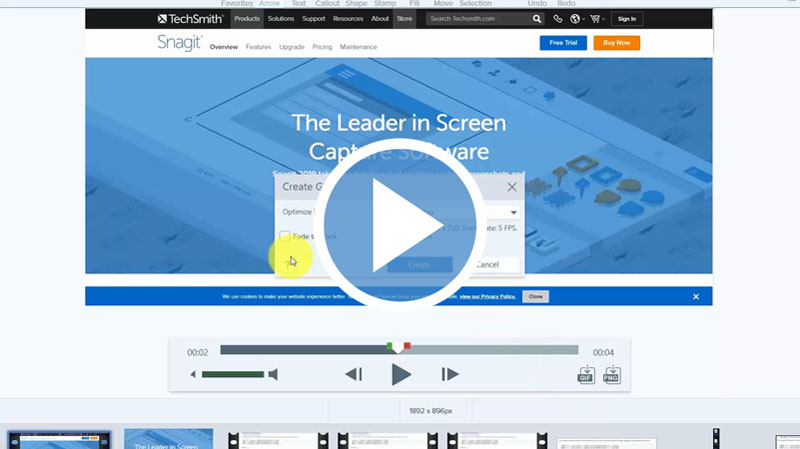
You can use any of your video to create a GIF file or a PNG file with an individual frame. In this video, you will learn how to convert your video file to a GIF file.
Lesson 40 - Conclusion
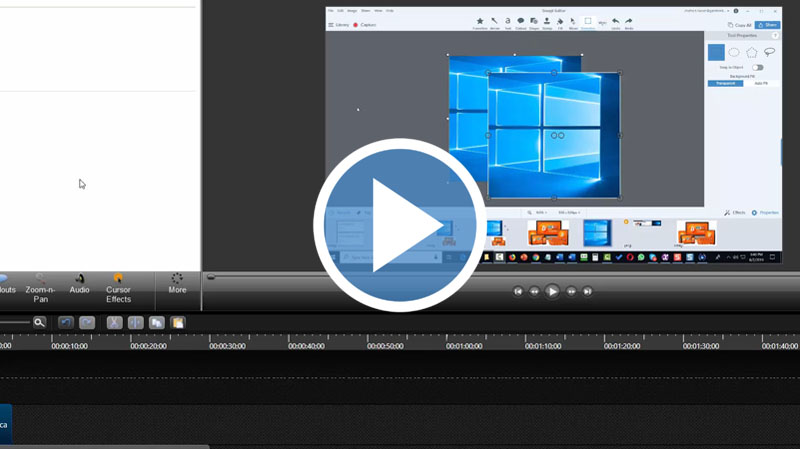
Snagit will allow you to share your content to any of the existing TechSmith programs. In this video, we'll show you how to share your content to Screencast.com, TechSmith Relay, Camtasia, etc.
Now Yon Can Easily Create Explainer Videos, ???How To??? Instruction Manuals, Video Lessons, Step-by-Step Blog Posts and More!
If you're not using instructional content in your business to help sell or pre-sell your products, services or recommendations then you're missing out on sales big time! ...
More importantly... you're wasting the existing traffic you're sending to those pages because you can quite easily double, if not triple your conversion rates with a few simple tweaks.
You don't have to be a videographer, have an artistic eye, or write scripts like a movie producer. Thankfully, there are some basic steps that anyone can follow to create quality content that leads to traffic and sales quickly and easily.
Still Unsure if these Tutorials are for You?... Here's How Professional Diagrams, Videos and Illustrations Will Help Increase Your Sales and Grow Your Business...
 You'll impress your customers, they'll remember the experience and buy more from you
You'll stand out from competitors who only sell digital products on 'quiet' sales pages
Your sales funnel will become more profitable
Affiliates and JV partners will want to promote you (for the long term)
You'll gain more authority in the marketplace
You'll be able to cross-promote your more expensive products
Customers will trust you and you'll increase your back-end sales
You'll be able to bring new life back into your existing digital products including unused PLR
Your Purchase is Backed by Our 100% Satisfaction Guarantee!
 You're now one step closer to building an online business that you've always wanted. Our training videos were created for marketers so you're getting REAL training that you need and refer back to time and time again.
When you invest in this course today you're backed by a ???No Like No Buy??? guarantee. If you feel that these videos did not help you in anyway then send us an email requesting for a full and prompt refund.
How can we make such a confident guarantee? Simple. Firstly because we know that these videos are packed full of value - stuff that they don't teach you in school and secondly because we were once in your shoes and know what it's like to go through this steep learning curve.
You're getting access to the exact information we needed years ago but had to learn ourselves the hard way. Order now in complete confidence and we'll deliver this course to you immediately.
It Couldn't be Easier! Watch, Learn and Apply what you Need to Know... When you Need to Know it!
You have absolutely every reason to become successful online and with all this knowledge at your fingertips nothing will hold you back.
Use your new found knowledge to learn, grow and expand so you can attract more prospects, customers and clients.
Listen... it's not about trying to re-invent the wheel. Sometimes all it takes is knowing how to work with what's already in front of you to get the results you need.
Secure your videos now and you can start watching and applying these powerful methods within minutes from now! Click the order button below to get started...
Watch a sample video below to get started...
Secure Your Order Now and Create Step-by-Step Tutorials, Express Ideas Faster with Virtual Assistants, Create Professional Presentations and More with Screen Capture Software!
40 Over-the-Shoulder Training Videos Reveal How to Create Crisp Clear Annotated Screen Captures to Increase Your Business Profits!
Regular Price $27
Your Price Only $9.95


To Your Success! Theoda Metcalf and Aaron Danker
Your online teachers passionate in helping you succeed!

Theoda has a passion for internet marketing with plenty of experience and a growing knowledge of the industry. Theoda is comitted to helping you grow your online business and achieve real tangible results that you can be proud of. If you have any pre-sale questions about this product, please contact support@shopanpop.com for help and support and your questions will be answered you as soon as possible.

Aaron Danker is an established internet marketer with over 10 years of online experience. He provides high level turn-key solutions, website installation services and coaching to share his knowledge and expertise with dedicated students. This product is the result of years of marketing experience all condensed into one powerful and easy-to-use learning platform to help solve problems many entrepreneurs face.
Click Here to Secure Your Order Now